

Clinical Location Authorization
Clinical Location Authorization
Clinical Location Authorization allows administrators to control which clinical locations and clinical location groups users can access within a tenant.
When enabled, users can only:
- View and filter studies assigned to authorised clinical locations
- Use report templates scoped to authorised clinical locations
Enable Clinical Location Authorization
By default, Clinical Location Authorization is disabled, and users can view all studies within an organisation.
To enable Clinical Location Authorization:
- Navigate to Settings → Advanced → General.
- Scroll down to Location Authorization Enabled.
- Enable the setting.
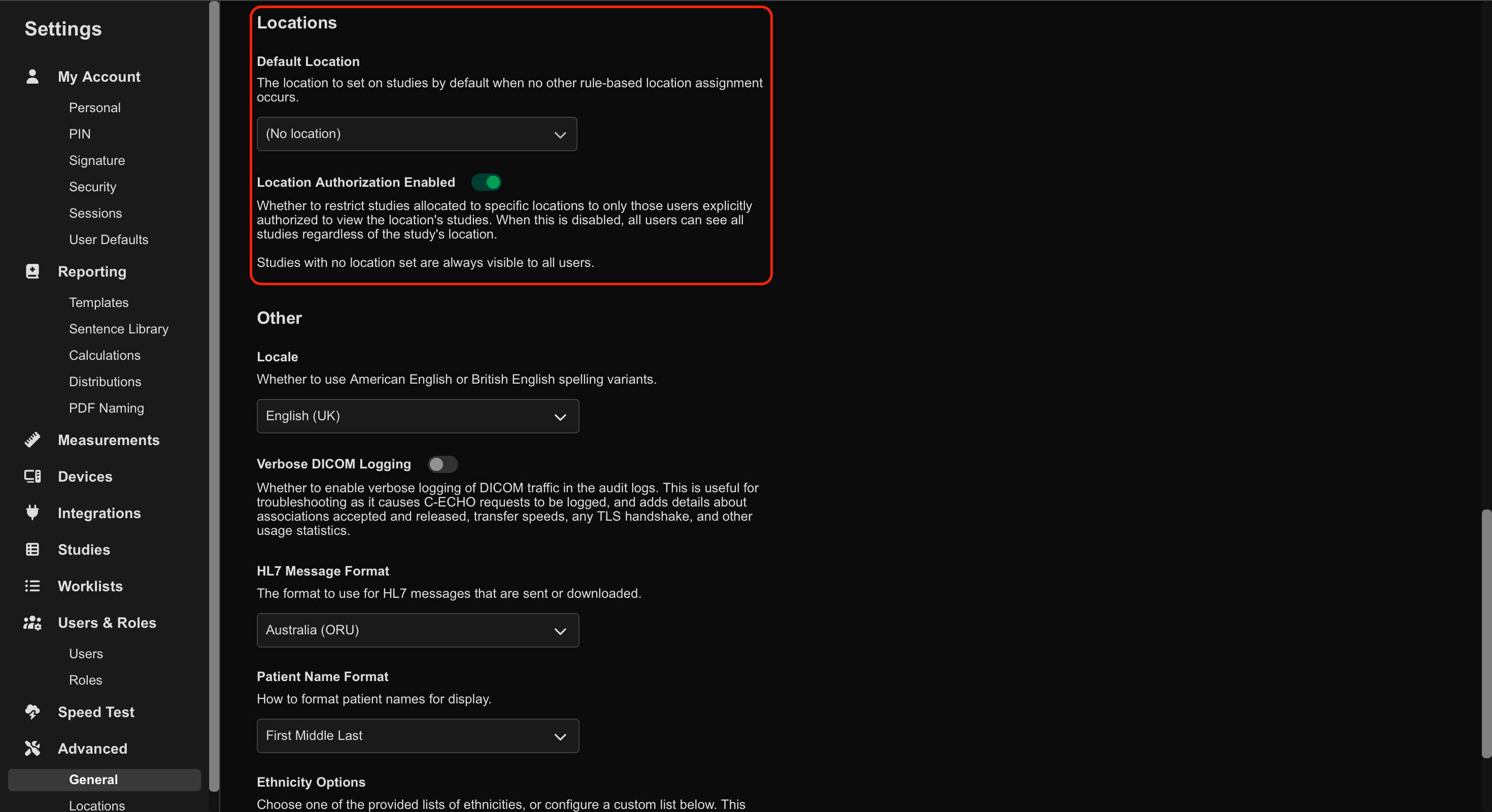
Once enabled:
- Study filtering becomes scoped according to the user’s assigned clinical locations and groups
- Report template availability becomes location-aware
Optional: Configure a Default Location
Administrators can optionally configure a default clinical location.
Studies uploaded without an assigned clinical location are automatically assigned to the default location.
Create Clinical Locations
Clinical locations are organised into Parent groups that contain one or more Child locations.
To create a clinical location:
- Navigate to Settings → Advanced → Locations.
- Select Create Location.
- Enter the location details.
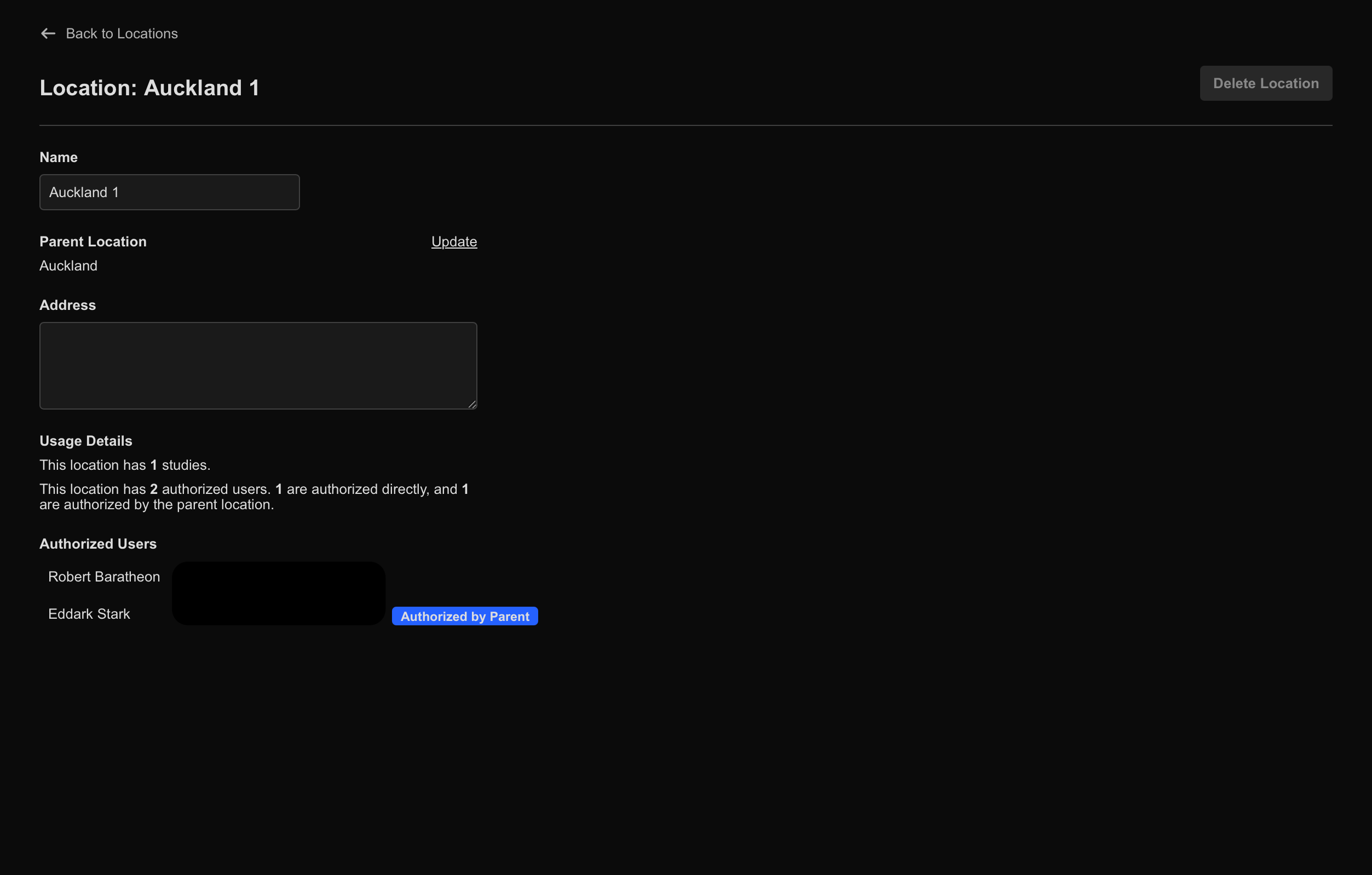
By default, clinical locations are created as Parent Locations.
Create a Child Location
To create a Child Location:
- Select an existing Parent Location.
- Assign the new location beneath the selected parent.
Administrators can also:
- Edit location names
- Change parent-child relationships
- Review assigned users
- Review assigned studies
- Review child locations
Assign Clinical Locations to Users
Administrators can assign users access to:
- Individual clinical locations
- Parent location groups
- A combination of both
To assign clinical locations to a user:
- Navigate to Settings → Users & Roles → Users.
- Select the target user.
- Click Edit Locations.
- Select the required locations and/or groups.
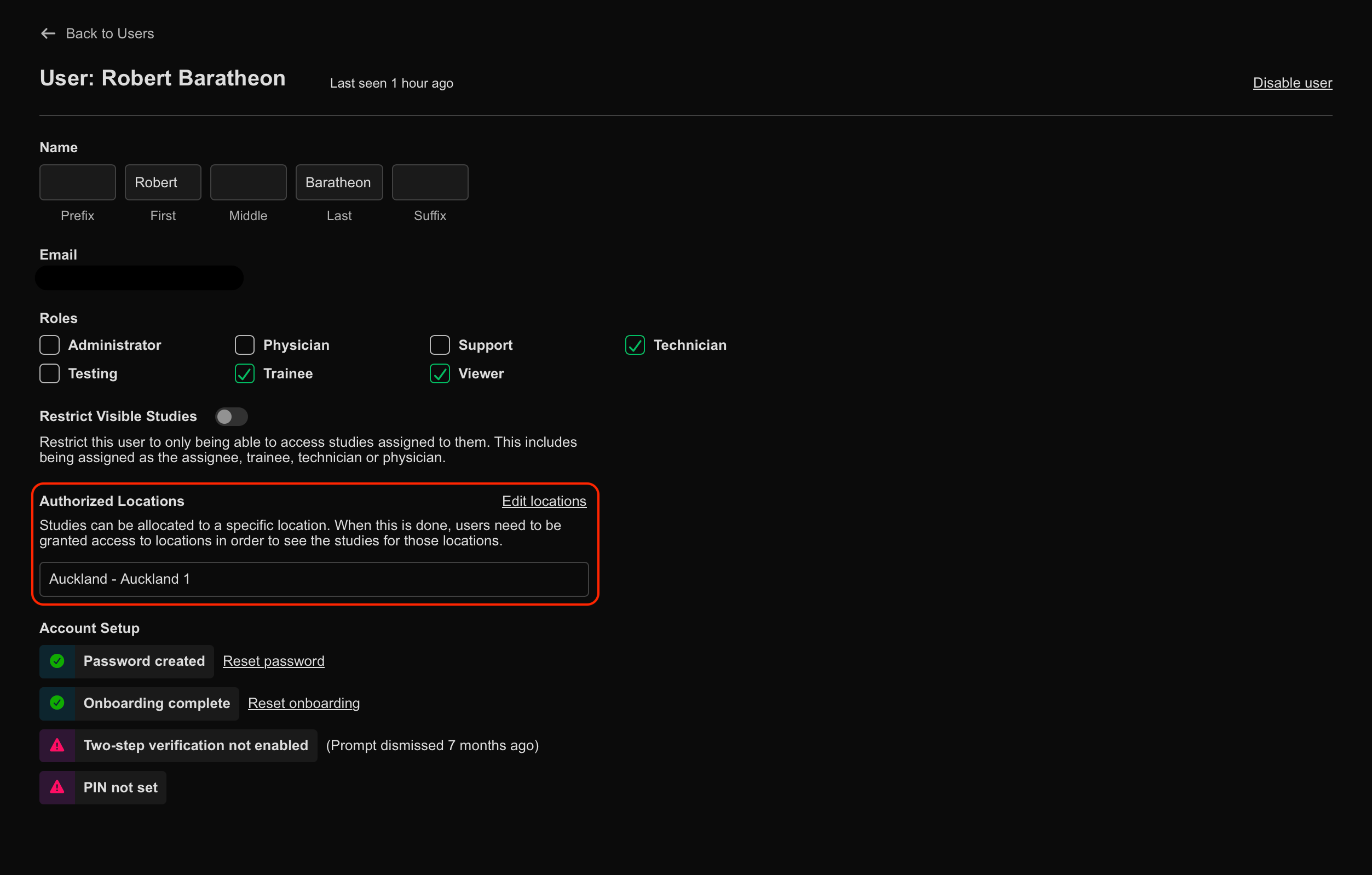
Users assigned to clinical locations only see studies associated with the same authorised locations.
Assign Clinical Locations to Report Templates
Report templates can be assigned to specific clinical locations or clinical location groups.
To assign clinical locations to a report template:
- Navigate to Settings → Reporting → Templates.
- Select the target template.
- From the Clinical Locations dropdown, select the applicable groups and/or locations.
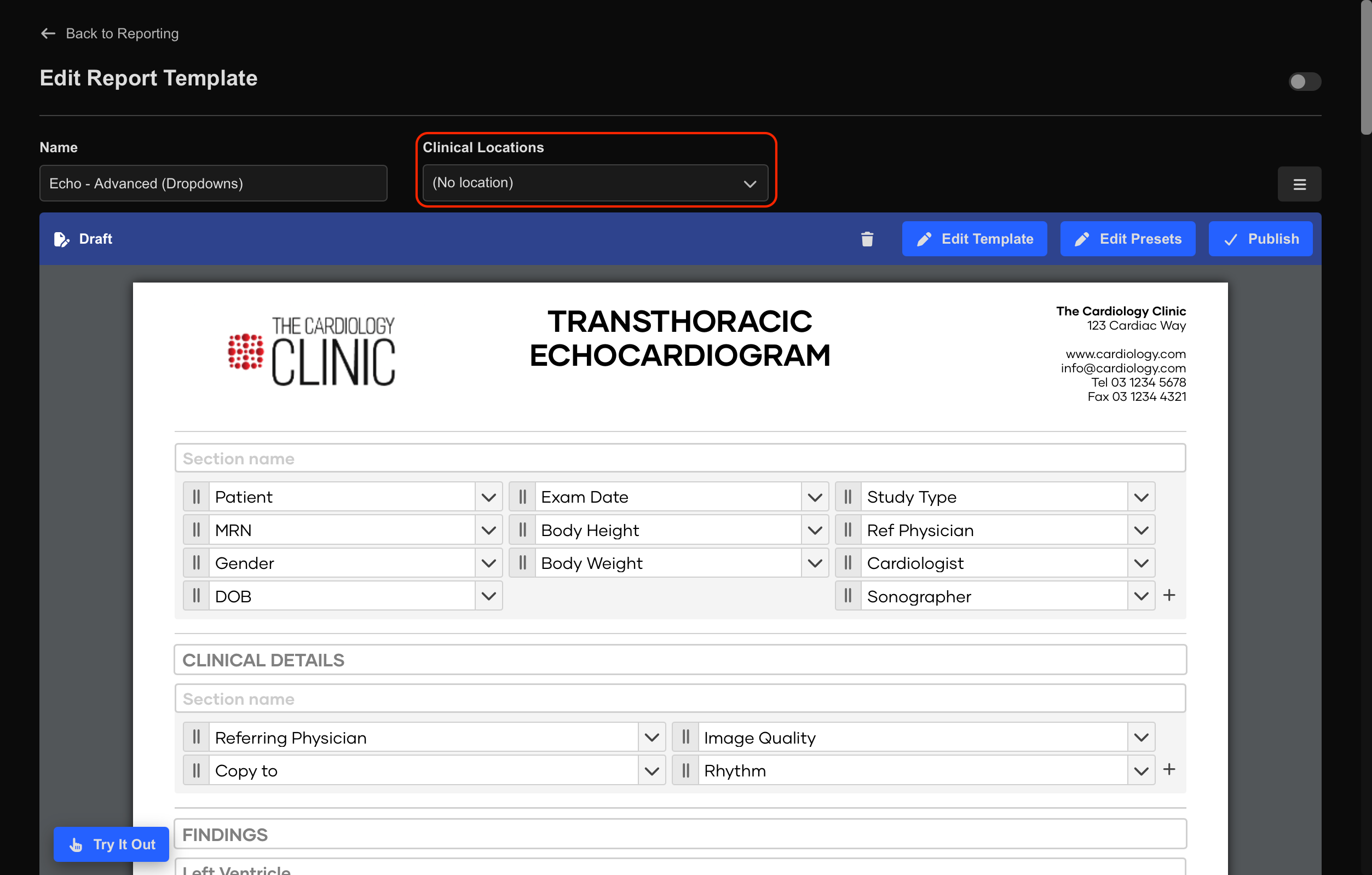
When reporting on a study, only report templates assigned to the study’s clinical location appear as selectable options.
 MFR
MFR