

Automated Reporting
Automated Reporting
Automated reporting allows report fields to populate dynamically based on:
- Study measurements
- Patient information
- Configured reporting rules
When a rule’s conditions are met, HeartLab automatically selects the corresponding dropdown option within the report template.
This helps:
- Reduce manual data entry
- Improve reporting consistency
- Standardise interpretation workflows
- Accelerate report completion
Configure Study Functions
Study Functions define the logic used by reporting automation.
Each Study Function contains:
- A function name
- One or more rules
- Up to ten measurement inputs
- Optional age or sex conditions
Rules typically represent classifications such as:
- Normal
- Mild
- Moderate
- Severe
To create or edit a Study Function:
- Navigate to Settings → Studies → Functions.
- Select an existing Study Function, or click Create Function.
- Configure:
- Input measurements
- Value ranges
- Conditional logic
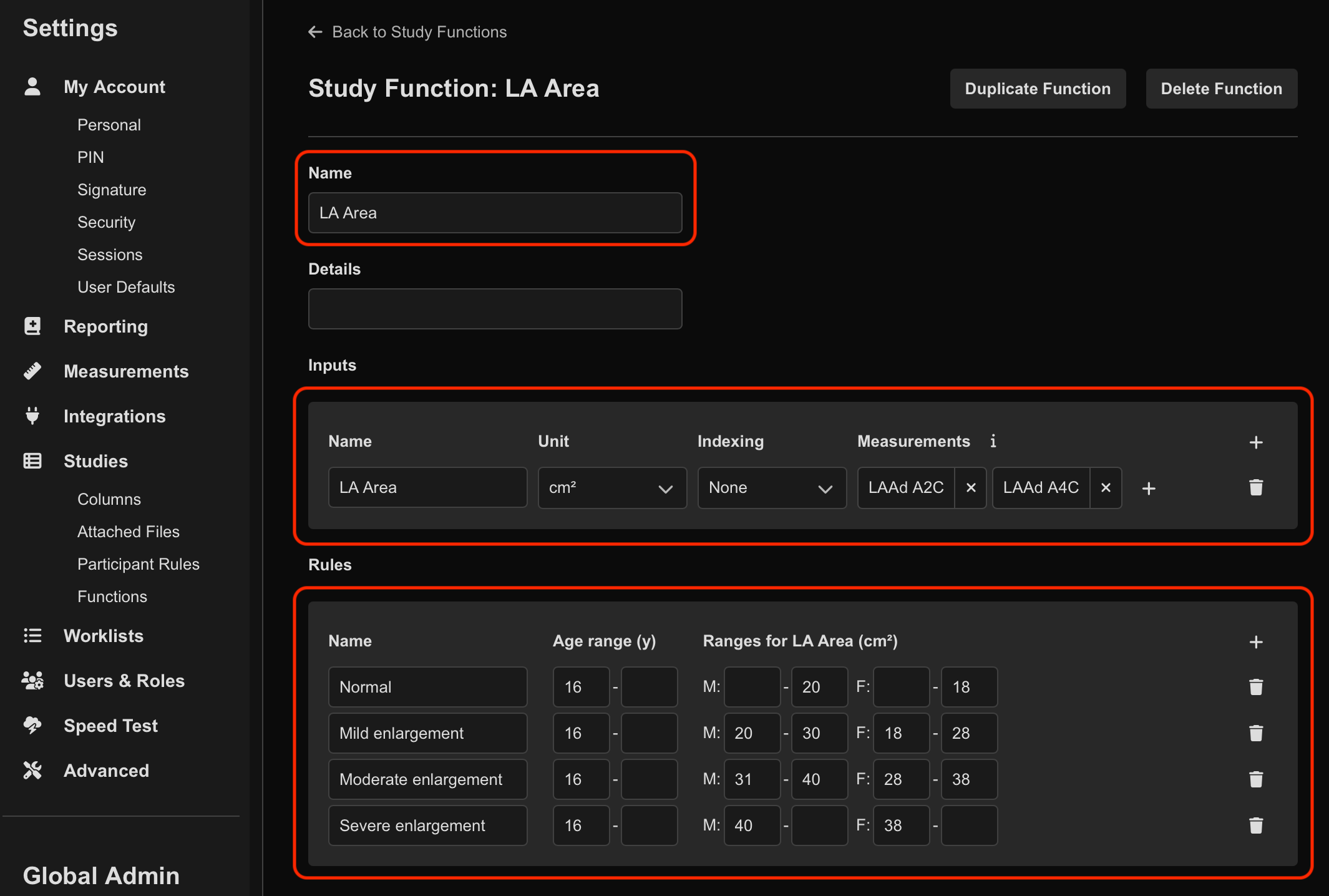
-Infinityfor minimum valuesInfinityfor maximum values
Link Study Functions to Report Templates
Once Study Functions have been configured, they can be linked to dropdown fields within report templates.
To enable automation within a report template:
- Navigate to Settings → Reporting → Templates.
- Select the desired report template.
- Select Edit Template.
- Open the desired dropdown field.
- Enable Use automation.
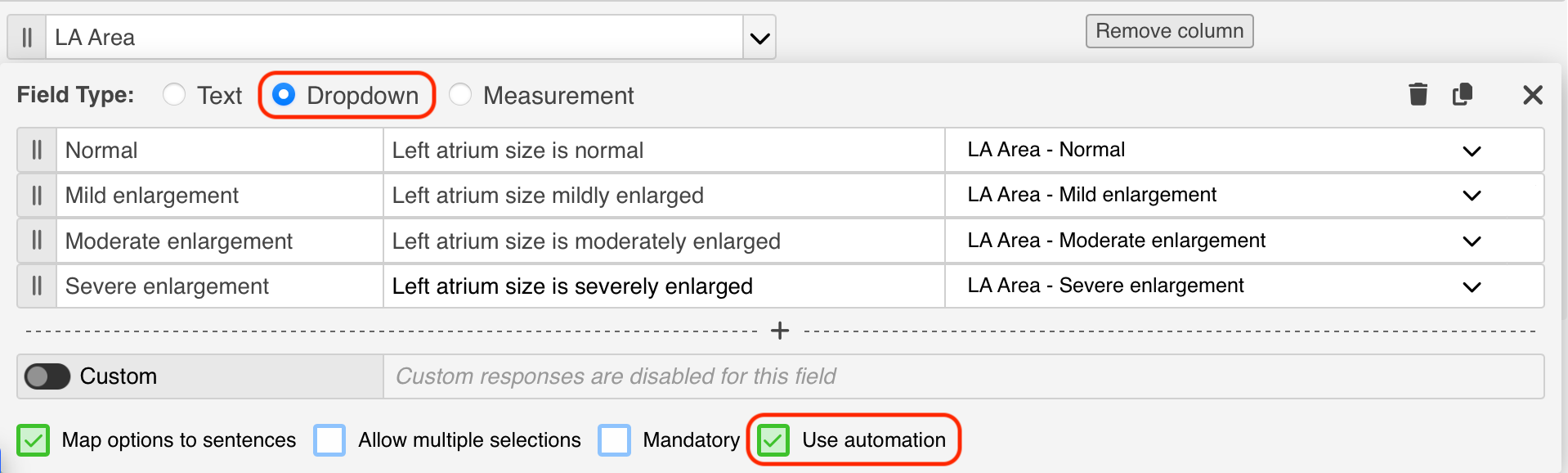
- For each dropdown option:
- Select the desired Study Function
- Select the corresponding rule
- Select Done.
- Publish the template.
Use Automated Reporting
When reporting with a template containing automation rules:
- Matching dropdown fields populate automatically
- Automated fields are highlighted in purple
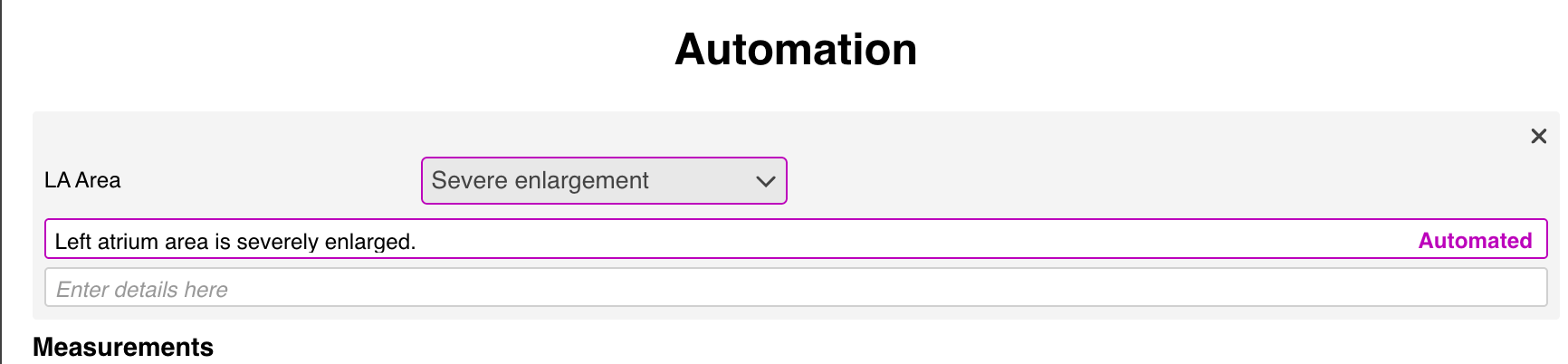
Automated fields update dynamically whenever relevant:
- Measurements
- Age
- Sex
- Other configured inputs
change within the study.
Override Automated Fields
Users can manually override automated selections when clinically required.
To override automation:
- Select a different dropdown option, or
- Enter custom text directly into the sentence field
Manual overrides temporarily disable automation for that field.
Re-Enable Automation
If automation has been overridden:
- Open the dropdown menu.
- Select Enable Automation.
The field will resume using the configured Study Function logic.
 MFR
MFR