

MPR Mode
Multi-Planar Reconstruction (MPR) Mode
Multi-Planar Reconstruction (MPR) mode allows users to review CT datasets across synchronised orthogonal planes for enhanced anatomical visualisation and spatial analysis.
MPR mode displays:
- Axial views
- Coronal views
- Sagittal views
simultaneously within a synchronised workspace, enabling more detailed review of anatomical relationships and structures.
Open MPR Mode
To open a CT study in MPR mode:
- Open the target study from the Study List.
- Locate a CT series within the Clip List.
- Select MPR.
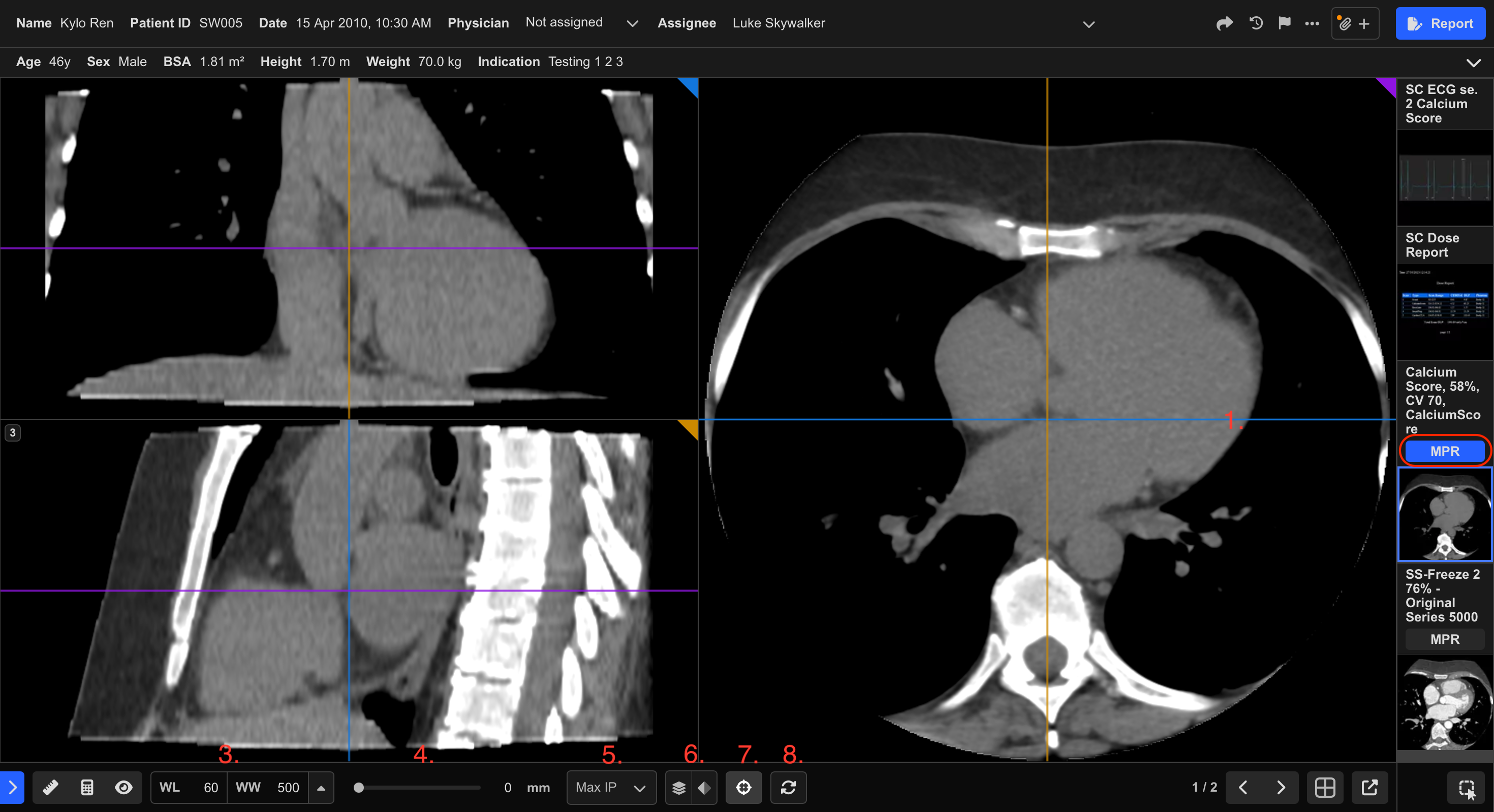
When enabled, the MPR button changes from black to blue.
Understanding the MPR Workspace
MPR mode initially displays three synchronised views side-by-side:
- Axial
- Coronal
- Sagittal
Each coloured crosshair line corresponds to the slice position shown in the other two views.
Coloured directional indicators in the top-right corner identify the corresponding viewing planes.
Navigate the CT Volume
Rotate the Viewing Plane
- Select and drag a coloured crosshair line (1)
The viewing plane rotates dynamically and automatically updates the other views.
Scroll Through Slices
To move through the CT volume:
- Use the mouse wheel while hovering over a view, or
- Drag the scrollbar at the bottom of the viewport
Navigation in one view automatically synchronises the remaining views.
Adjust Windowing
Windowing can be adjusted by:
- Clicking and dragging directly on the image, or
- Entering values manually in the bottom-left controls (3)
Preset windowing options are also available for common tissue types.
Adjust Slice Thickness
- Use the slice thickness control in the bottom toolbar (4).
Adjust Intensity Projection
- Use the projection controls in the bottom toolbar (5).
Projection mode controls whether:
- Maximum intensity
- Minimum intensity
- Mean intensity
is displayed across the selected slice thickness.
Additional Viewer Controls
Toggle Crosshairs
To show or hide crosshairs:
- Select the Crosshair icon (7), or
- Press H
Reset the View
To restore the default MPR layout:
- Select Reset Position (8), or
- Press R
Enter Full-Screen Mode
- Double-click any MPR panel.
Double-click again to return to the standard layout.
 MFR
MFR