

Reporting
Viewing Reports
Open the report pane from the Study List or Study Viewer and review report versions.
Viewing Reports
Study reports are created, reviewed, and managed through the Report Pane within HeartLab.
Depending on user permissions, the Report Pane may provide access to:
- Preliminary report editing
- Final physician sign-off
- Report amendments
- Internal clinician notes
- Previous report versions
Available reporting actions vary depending on assigned user roles and permissions.
Open the Report Pane
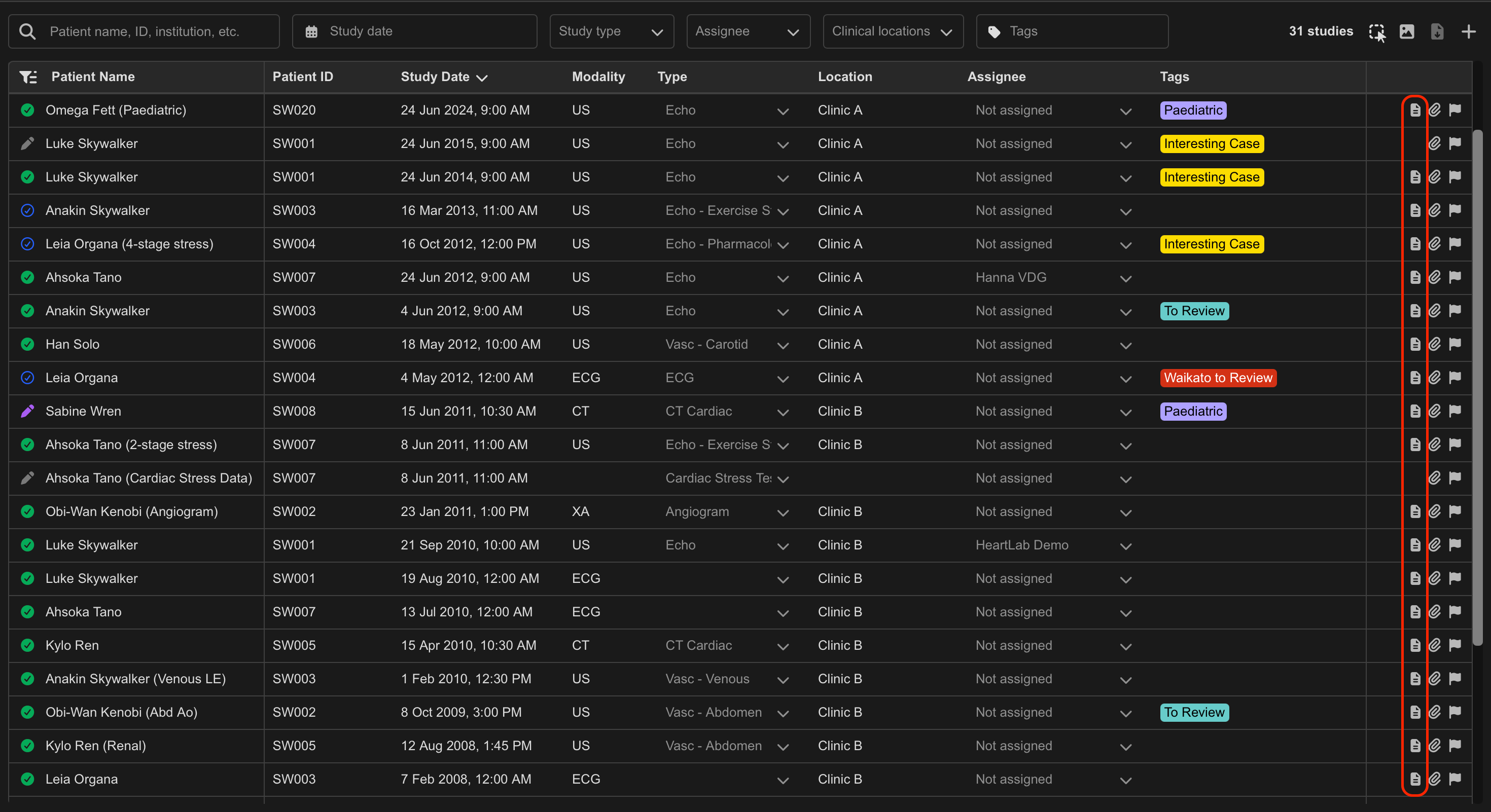
The Report Pane can be opened from either the Study List or the Study Viewer.
From the Study List
- Locate the desired study.
- Select View Report from the right-hand side of the study row.
From the Study Viewer
- Open the desired study.
- Select Report in the top-right corner, or
- Press R
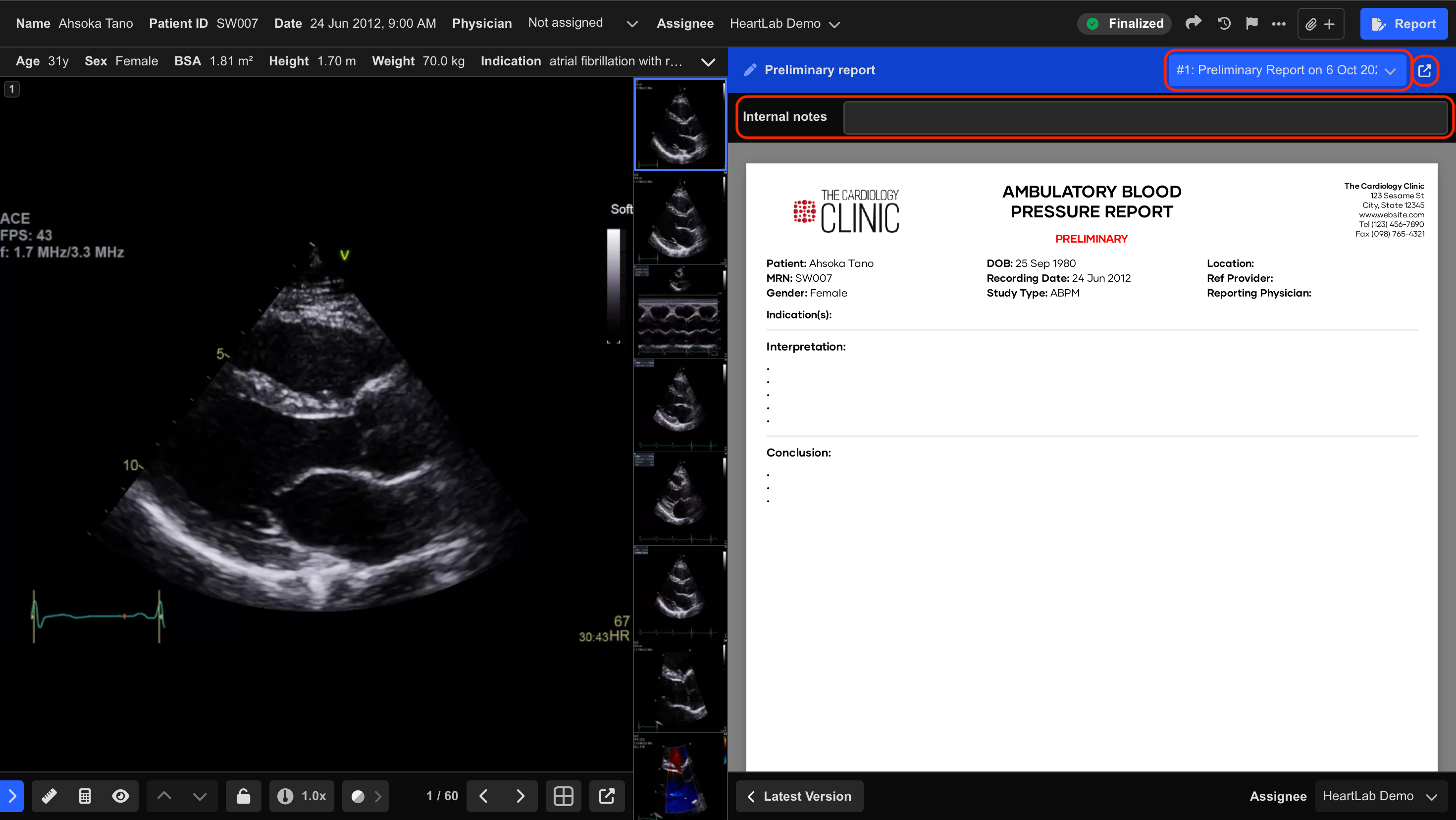
The Report Pane expands from the right-hand side of the Study Viewer.
Using the Report Pane
Resize the Report Pane
To resize the Report Pane:
- Click and drag the edge of the panel.
Open in a Secondary Window
To move the report into a separate window:
- Select the Open Report in Secondary Window icon.
Users can choose to display:
- The reporting interface, or
- An extended Cine Viewer
within the secondary window.
View Previous Report Versions
To switch between report versions:
- Open the version dropdown menu.
- Select the desired report version.
This allows review of:
- Preliminary reports
- Finalised reports
- Amendments
- Previous revisions
Internal Notes
If enabled, the Internal Notes section allows clinicians to leave comments for other internal users.
Internal Notes:
- Are visible only to authorised internal users
- Are excluded from the final report
- Do not appear in distributed reports
Additional Notes
Use report version history to review amendments and historical report changes without modifying the current report.
Available report functions may vary depending on user permissions and tenant configuration.
 MFR
MFR