

Measurements
Doppler Velocity
Capture and save single-point velocity measurements on Doppler waveforms.
Doppler Velocity Measurements
HeartLab allows users to perform single-point velocity measurements directly on spectral Doppler waveforms within the study viewer. Velocity measurements can be used to assess peak velocities and other discrete Doppler waveform values.
This guide explains how to create, review, and save Doppler velocity measurements.
Steps
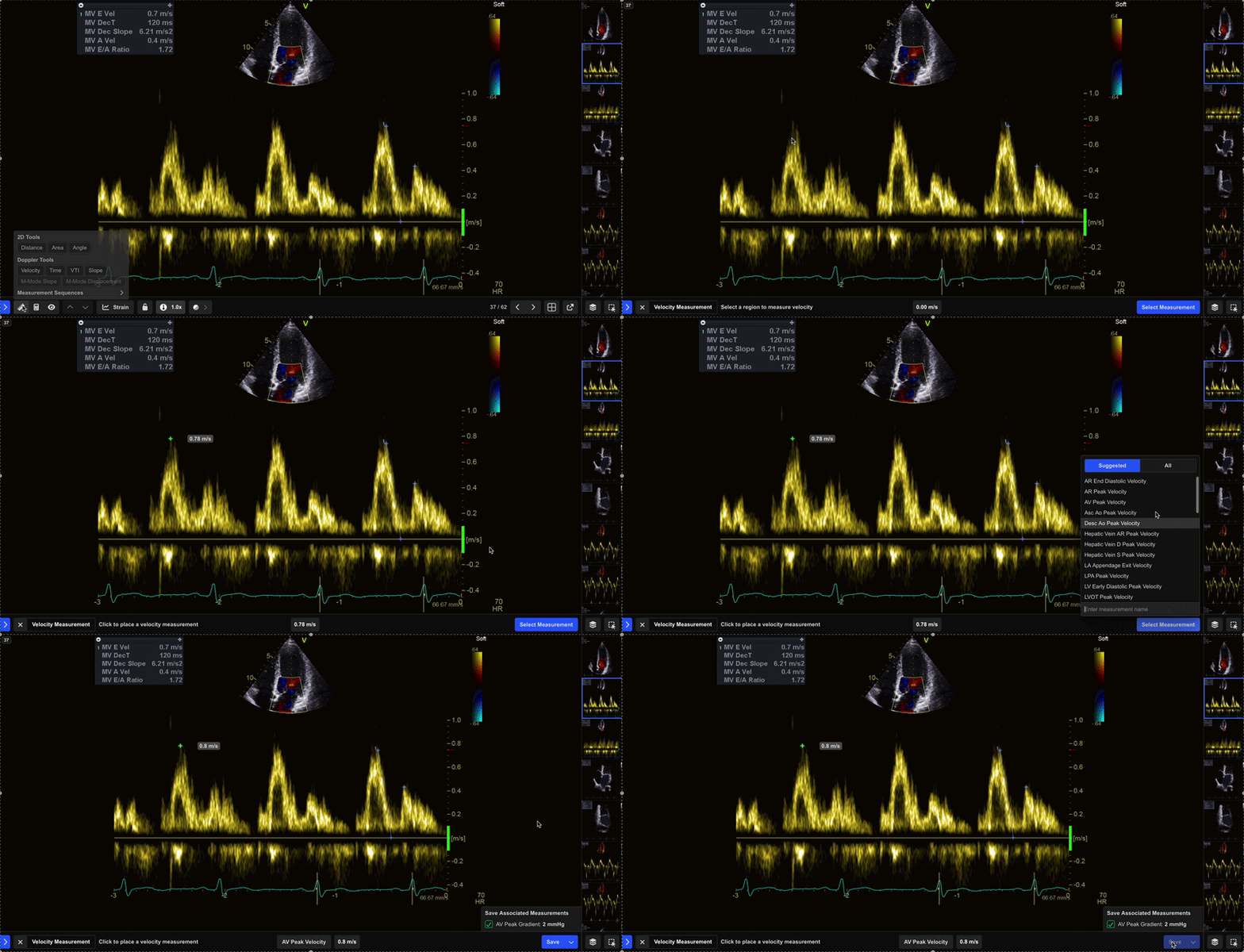
Step 1: Select the Velocity Tool
- Select Velocity from the Measurement Toolbar.
Doppler measurement tools are only available when viewing a recognised Doppler image.
Step 2: Capture the Velocity
- Click the target point on the Doppler waveform to capture the velocity value.
- If required, select another point on the waveform to reposition the measurement.
HeartLab displays a live preview of the velocity measurement in the lower pane.
Step 3: Save the Measurement
- Select Select Measurement or press Enter.
- In the pop-up window:
- Search, scroll, or create a measurement label
- Select the appropriate measurement type
- Optionally include related measurements
- Click Save or press Enter.
The measurement is saved to the study and the annotation remains visible on the image.
Ensure the selected point corresponds to the intended phase of the waveform. Use clearly defined Doppler envelopes to improve measurement consistency and reproducibility.
 MFR
MFR