

Building Report Templates
Building Report Templates
HeartLab allows organisations to create fully customised report templates to support efficient, standardised clinical reporting workflows.
Templates can be configured to control:
- Report structure
- Measurements
- Dropdown logic
- Sentences and conclusions
- Formatting and styling
- Automation behaviour
By standardising reporting workflows, templates help:
- Reduce manual data entry
- Improve reporting consistency
- Minimise reporting errors
- Accelerate report completion
Open the Report Template Editor
To create or edit report templates:
- Navigate to Settings → Reporting → Templates.
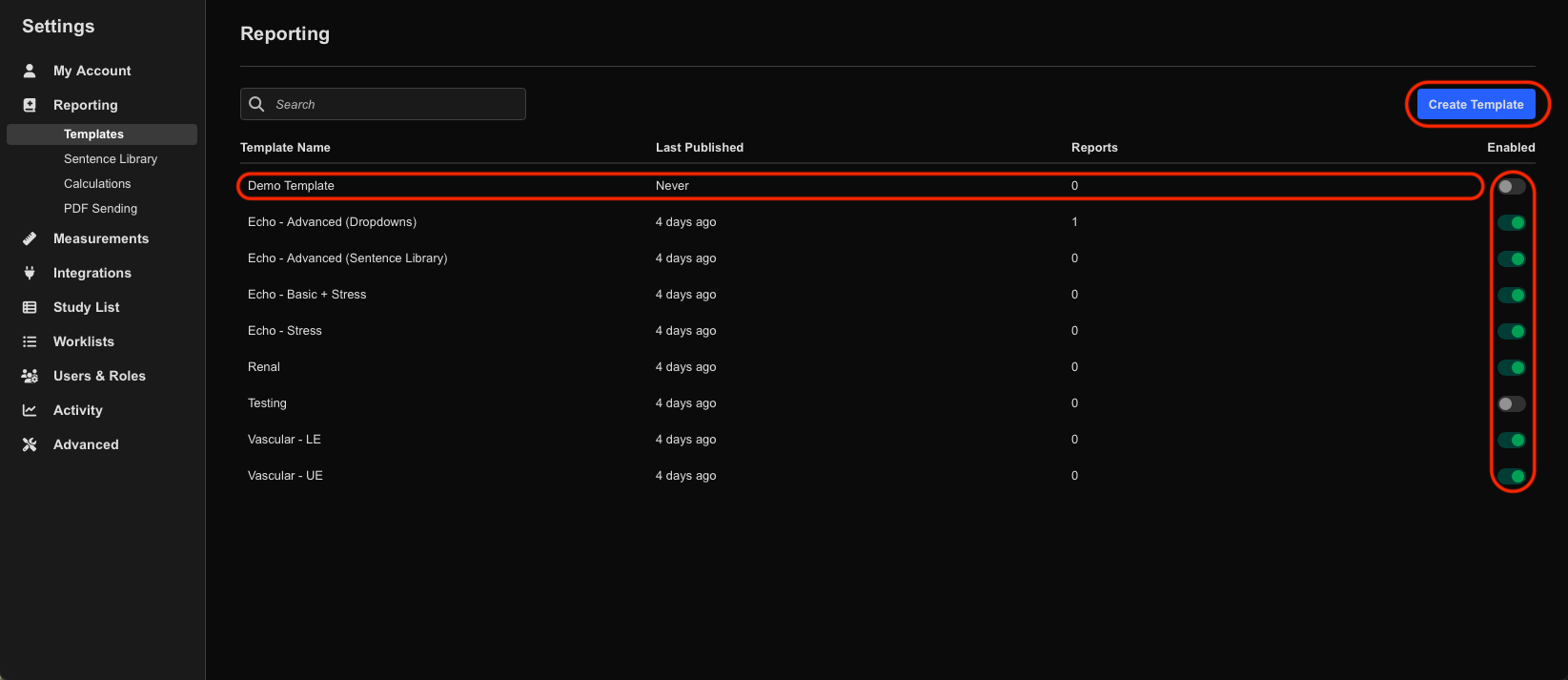
From the Reporting page, you can:
- Create new templates
- Edit existing templates
- Enable or disable templates
Create a New Template
To create a new report template:
- Select Create Template.
- Enter the template name.
- Select Create Template.
A new unpublished draft template opens in the Report Template Editor.
Edit an Existing Template
To edit an existing template:
- Select the desired template from the Reporting page.
The template opens directly in the Report Template Editor.
Using the Report Template Editor
The Report Template Editor allows administrators to configure:
- Report titles
- Logos
- Sections
- Dropdowns
- Sentences
- Measurements
- Tables
- Graphs
Enter Edit Mode
To begin editing:
- Select Edit.
The top toolbar changes to blue, indicating the template is currently in edit mode.
Template Structure
Templates generally follow this hierarchy:
- Sections
- Dropdowns
- Options
- Dropdowns
Each level can be independently configured and rearranged.
Toolbar Functions
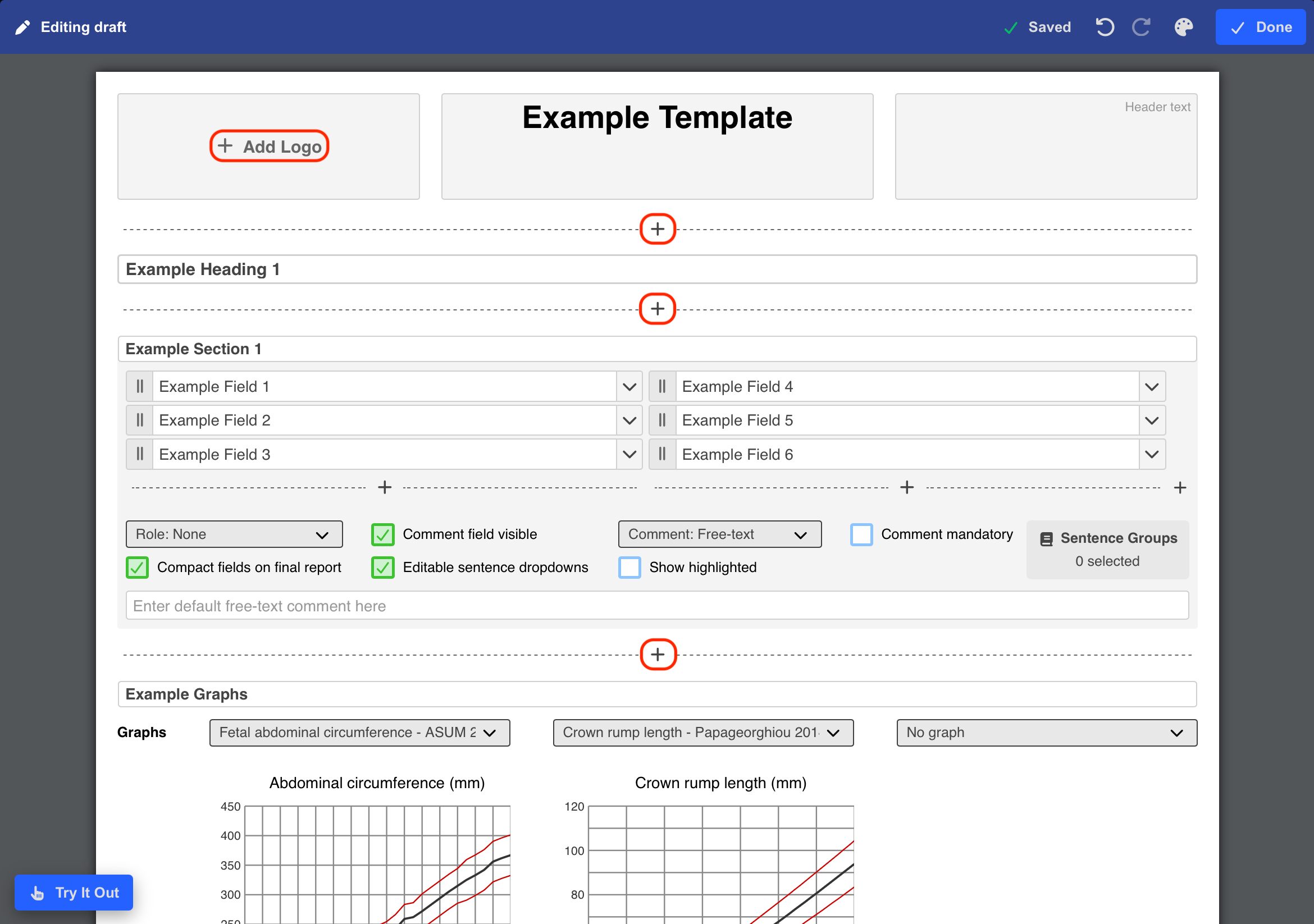
The editor toolbar includes:
- Saved indicator
Displays automatic save status. - Undo / Redo controls
- Report styling controls
Including:- Fonts
- Margins
- Patient information visibility
- Done
Exits editing mode.
Add Report Elements
To add content:
- Hover over a + icon.
- Select the desired element type.
Available elements include:
- Headings
- Fields
- Tables
- Diagrams
- Graphs
- Lists
Configure Report Fields
Within each section, administrators can add different field types to control how information is captured and displayed within the report.
Available field types include:
- Free text
- Dropdown menus
- Sentences
- Calculations
- Measurement fields
- Image sections
- Automated reporting logic
Measurement fields support configuration of:
- Units
- Decimal places
- Multiple measurements with fallback priority
These settings allow report templates to display measurements consistently while providing flexibility when preferred measurements are unavailable for a study.
For detailed information about configuring specialised report fields, see:
Rearrange Template Elements
Rearrange Sections
To reorder sections:
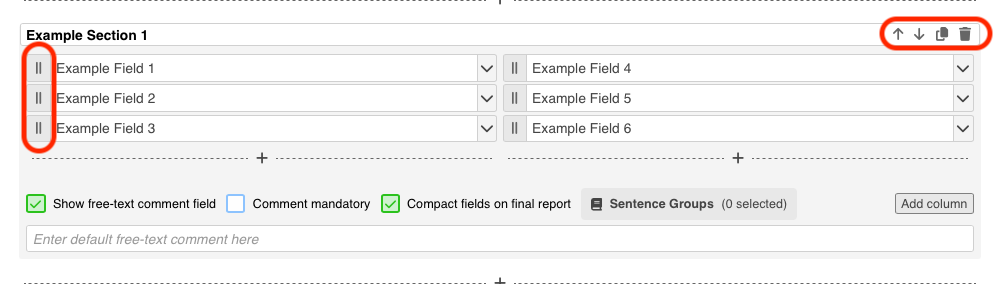
- Use the up/down arrow controls beside the section heading.
Rearrange Dropdowns
To reorder dropdowns:
- Click and drag them into the desired position.
Duplicate or Delete Elements
To duplicate a section or element:
- Select the Duplicate icon.
To delete a section or element:
- Select the Bin icon.
Preview and Test Templates
HeartLab allows templates to be tested before publishing.
To preview a template:
- Select Try it out.
A preview window opens, allowing users to:
- Test dropdowns
- Trigger automation
- Validate calculations
- Review formatting
To exit preview mode:
- Close the preview window.
Publish Templates
Once template changes are complete:
- Select Publish.
- Confirm the publish action.
After publishing:
- The template receives a publication timestamp
- A green indicator confirms published status
Revert a Template to Draft
To return a published template to draft mode:
- Select Edit.
The template automatically reverts to an unpublished draft state.
Enable or Disable Templates
To make a template available during reporting:
- Enable the template toggle within:
- The Report Template Editor, or
- The Reporting settings page
Disabled templates:
- Remain stored in the system
- Cannot be selected during report creation
Duplicate or Delete Templates
Additional template actions are available from the Burger Menu in the top-right corner.
Available actions include:
- Duplicate template
- Delete template
- Import template
- Export template
Duplicate a Template
Selecting Duplicate creates a copy named:
[Template Name] (Copy)
 MFR
MFR