

Study Management
Assign Studies
Assign studies to users for review, drafting, and sign-off workflows.
Assign Studies
Assigning studies helps ensure that each study has a clearly designated user responsible for review, reporting, or approval workflows.
Assignments help clinical teams organise workload more efficiently and allow users to focus on studies relevant to their role or responsibilities.
If enabled, assigned users may also receive email notifications when studies are assigned to them.
Assign a Study from the Study List
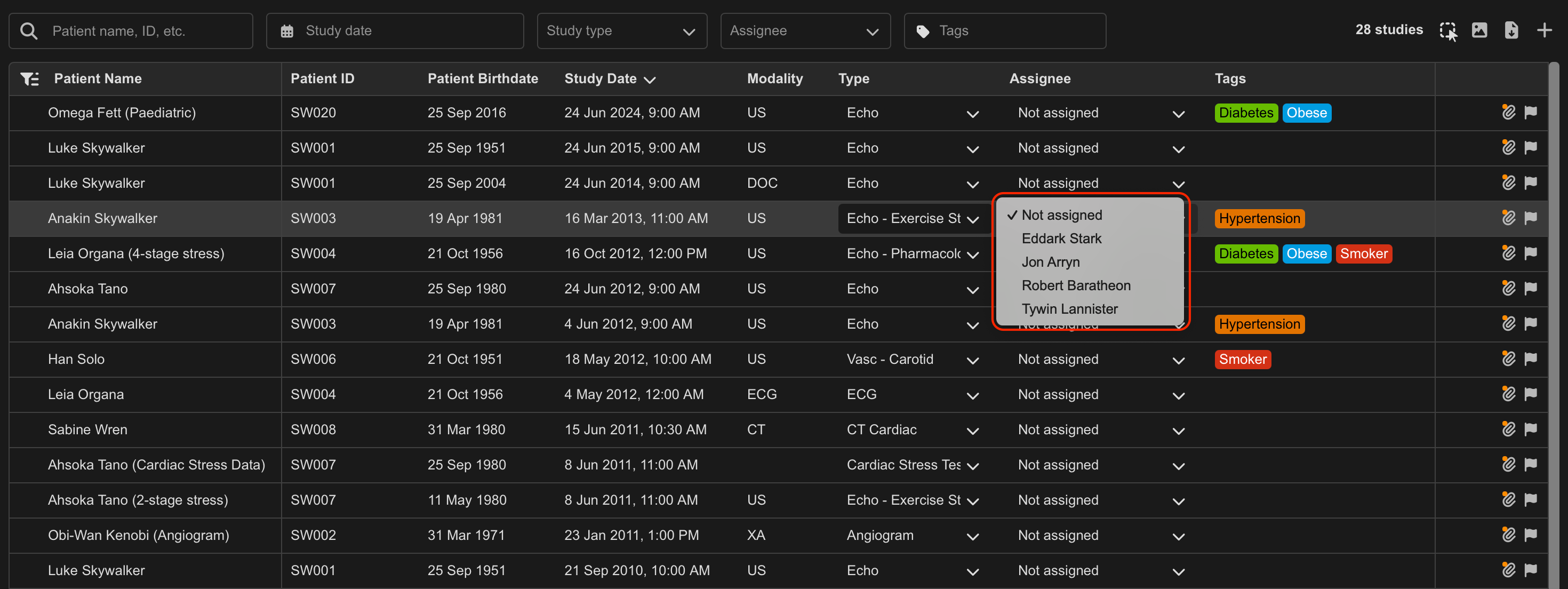
- Locate the target study in the Study List.
- Select the dropdown in the Assignee column.
- Select the user to assign to the study.
The study is immediately assigned to the selected user.
Available assignment columns and roles may vary depending on your organisation’s HeartLab configuration.
Assign a Study from the Study Viewer
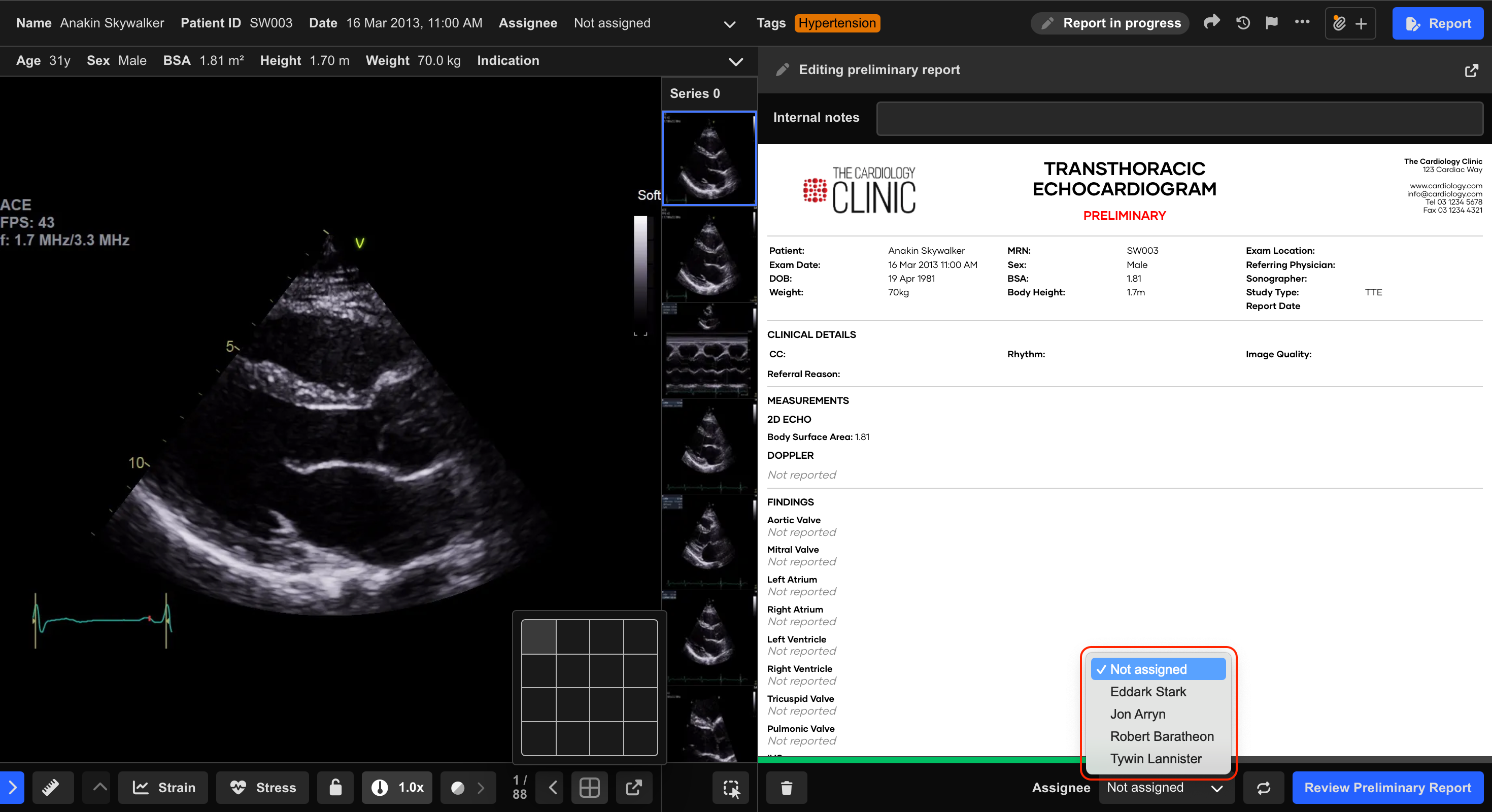
- Open the target study.
- Select Report in the top-right corner, or press
R. - Locate the Assignee dropdown near the bottom of the Reporting Pane.
- Select the user to assign to the study.
The assignment is saved automatically.
Additional Notes
Users who have enabled email notifications receive assignment alerts automatically.
See Personal Settings for guidance on enabling or disabling assignment notifications.
Assignment permissions depend on role-based access configured by your organisation.
Under default workflows:
- Technicians or Sonographers may approve preliminary reports
- Physicians may finalise reports
 MFR
MFR