

Study Management
Split Study
Create a new study from selected clips in an existing study.
Split Study
The Split Study feature allows authorised users to separate selected clips from an existing study into a new, independent study.
This is particularly useful when:
- Multiple exams are accidentally recorded into a single study
- Clips need to be reorganised between studies
- Incorrectly grouped acquisitions need to be separated
Splitting studies helps maintain accurate clinical records without requiring manual re-uploading or duplication of data.
Create a Split Study
To create a new study from selected clips:
- Open the target study from the Study List.
- Select the Multi-Select tool in the bottom-right corner of the Clip List.
- Select the clips to include in the new study.
- Right-click one of the selected clips.
- Select Create New Study.
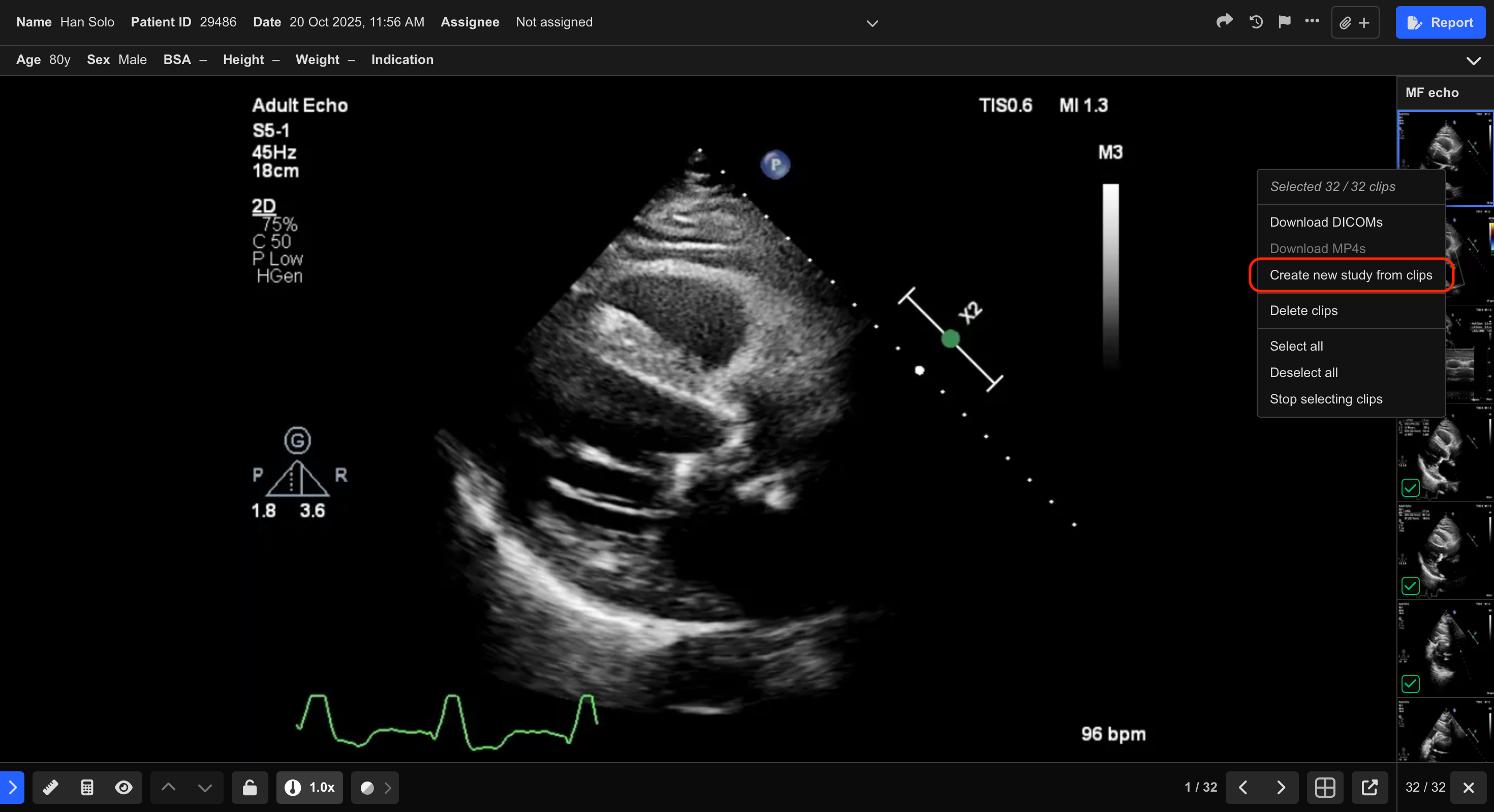
- Review the selected clips in the confirmation window.
- Select Create Study.
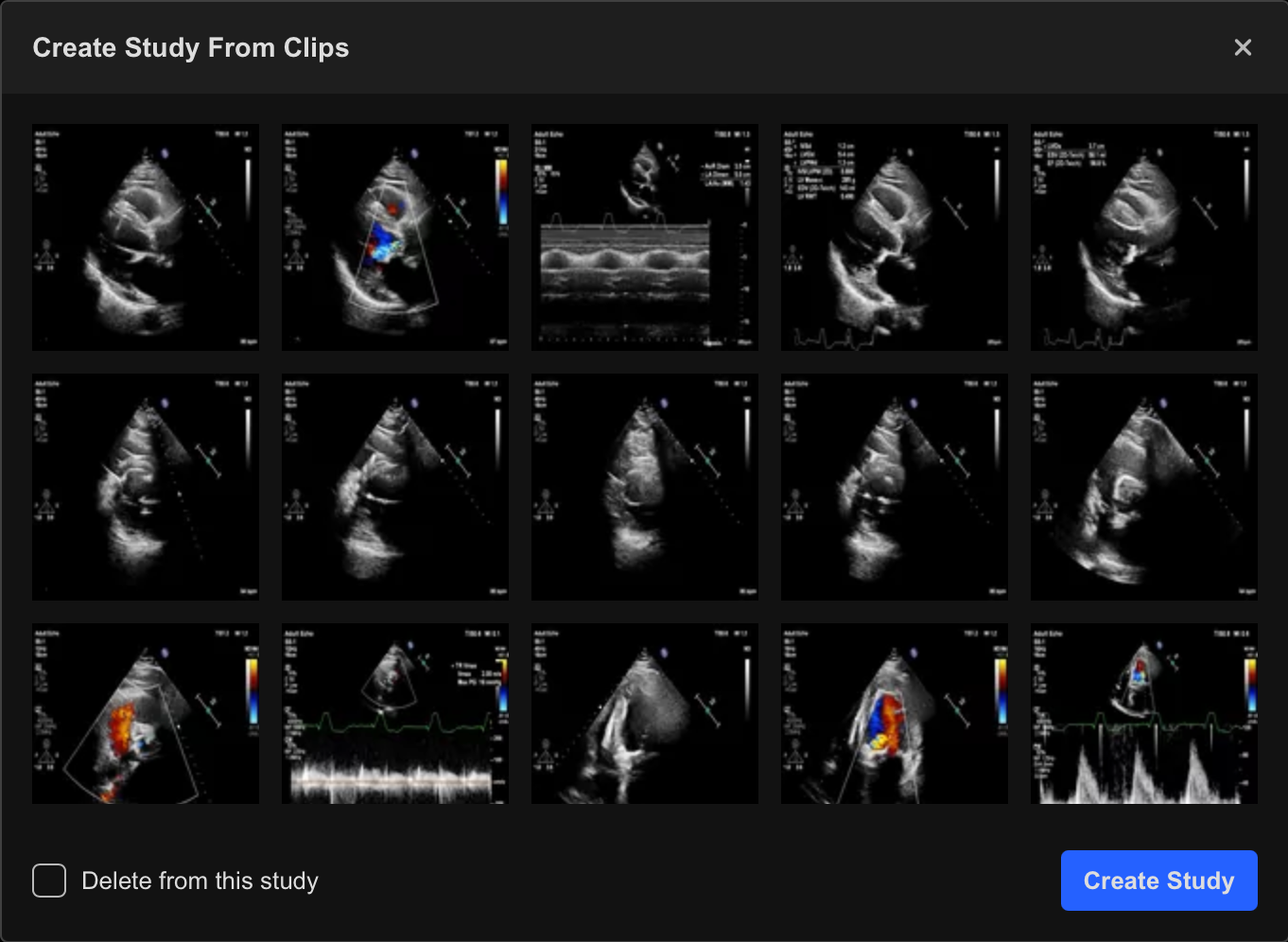
- Optionally enable Delete from this study to remove the selected clips from the original study after splitting.
A new study is created using:
- The same patient information
- The same study details
The new study appears in the Study List with "Split" appended to the study name.

Additional Notes
The DICOM SR thumbnail contains measurements captured on the ultrasound machine.
Include the DICOM SR thumbnail when splitting studies if you want ultrasound machine measurements to remain associated with the new study.
Deleting clips from the original study is permanent and cannot be undone.
 MFR
MFR