

Study Review
Delete Clips
Delete single or multiple clips from a study with confirmation safeguards.
Delete Clips
HeartLab allows authorised users to permanently remove clips from a study when incorrect, duplicate, or unwanted acquisitions need to be cleaned up.
Clip deletion helps maintain accurate studies and improve workflow efficiency by removing unnecessary content before reporting or archiving.
Deleting clips is permanent and can only be undone by contacting HeartLab Support.
Before You Begin
For Stress Echo studies, you must exit Stress Mode before managing clips.
To exit Stress Mode:
- Select the Stress Mode button, or
- Press S
While Stress Mode is active, right-click actions on clips activate measurement tools instead of clip management actions.
Delete a Single Clip
To delete an individual clip:
- Locate the target clip in the Clip List.
- Right-click the clip.
- Select Delete.
The selected clip is highlighted before deletion confirmation.
- Review the selected clip carefully.
- Select Delete to confirm.
The clip is permanently removed from the study.
Delete Multiple Clips
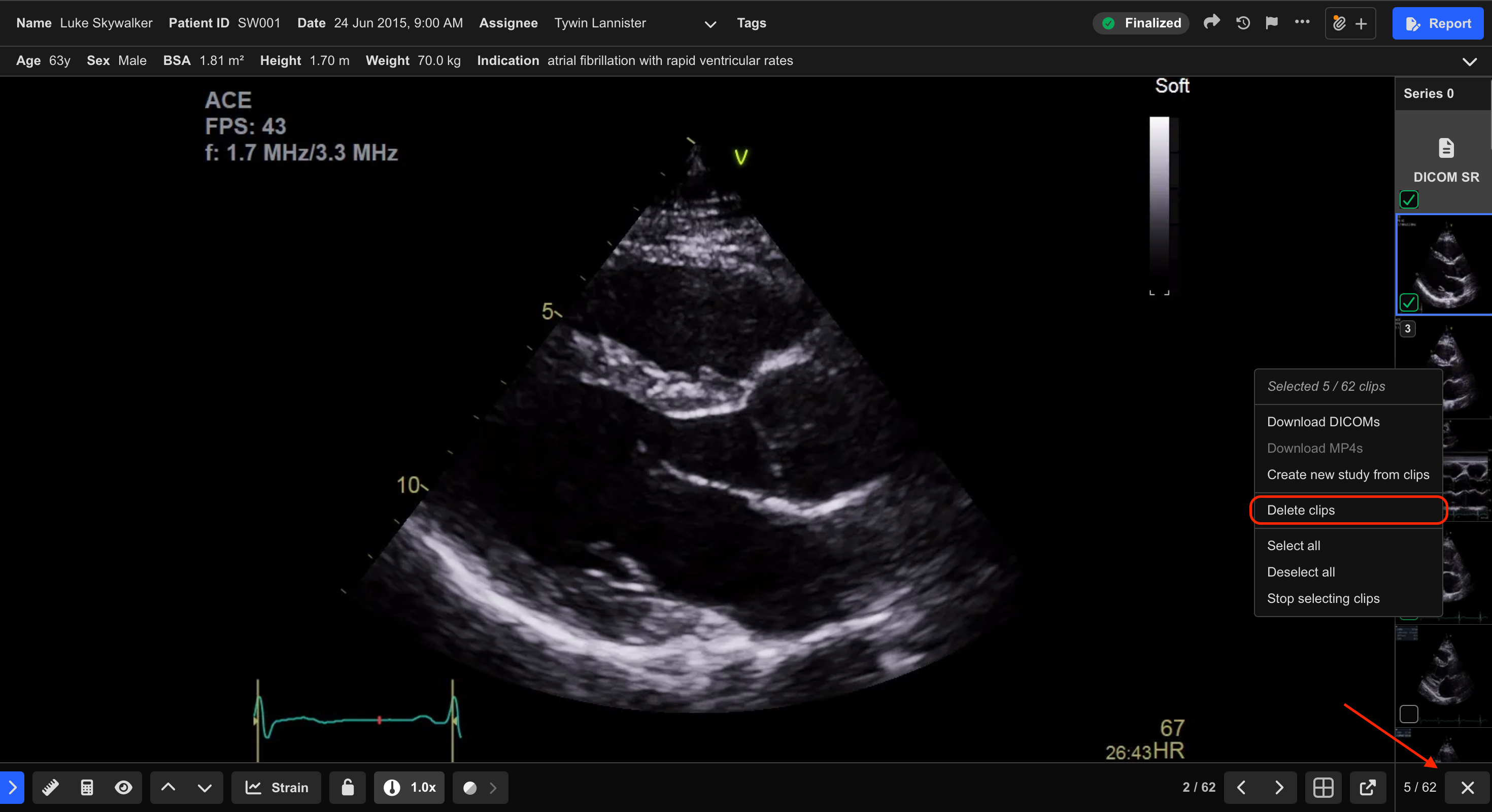
To delete multiple clips at once:
- Select the Multi-Select tool in the bottom-right corner of the Study Viewer.
- Select the clips to delete.
- Right-click one of the selected clips.
- Select Delete Clips.
- Review the selected clips carefully.
- Select Delete to confirm.
To exit Multi-Select mode:
- Select the Multi-Select icon again.
Additional Notes
Deleting clips may also remove associated measurements linked to those clips.
Deleting a DICOM SR thumbnail also removes associated ultrasound machine measurements from the study.
Review selected clips carefully before confirming deletion to avoid unintended data loss.
 MFR
MFR