

Measurements
Custom Calculations
Create, validate, and enable custom measurement calculations for your organisation.
Custom Calculations
HeartLab allows organisations to create custom calculations using existing study measurements and manually entered values. Custom calculations can help standardise reporting workflows, automate derived measurements, and reduce the need for manual calculations.
This guide explains how to configure, validate, and use custom calculations within HeartLab.
Configure a Custom Calculation
Step 1: Open Calculation Settings
- Navigate to Settings > Measurements > Calculations.
- Select Create Calculation.
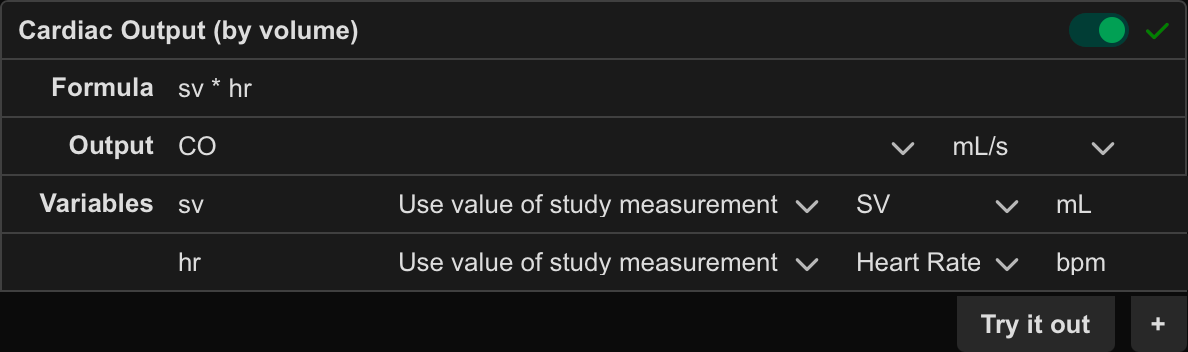
Step 2: Configure the Calculation
- Enter a calculation name.
- Enter the calculation formula.
- Click the + icon to add one or more input variables.
- For each input variable, configure:
- Measurement name
- Measurement unit
- Whether the value should be entered manually or pulled from study data
- If the variable is manually entered, define both a label and a unit.
- If the variable uses study measurements, define the measurement label used for matching.
- Define the output label and output unit.
Step 3: Validate the Calculation
- Use Try it out to test the calculation with sample values.
- Confirm that the returned result matches the expected output.
Each calculation displays a validation status indicator:
- ✅ Green tick — The calculation is valid and ready for use
- ❌ Red cross — The calculation contains an error that must be resolved
Before enabling a calculation, verify that:
- The formula returns the expected result
- Input variables are mapped correctly
- Measurement labels match the intended study measurements
Use a Custom Calculation
Step 1: Open the Calculation Tool
- Navigate to the target study.
- Select the Calculator icon.
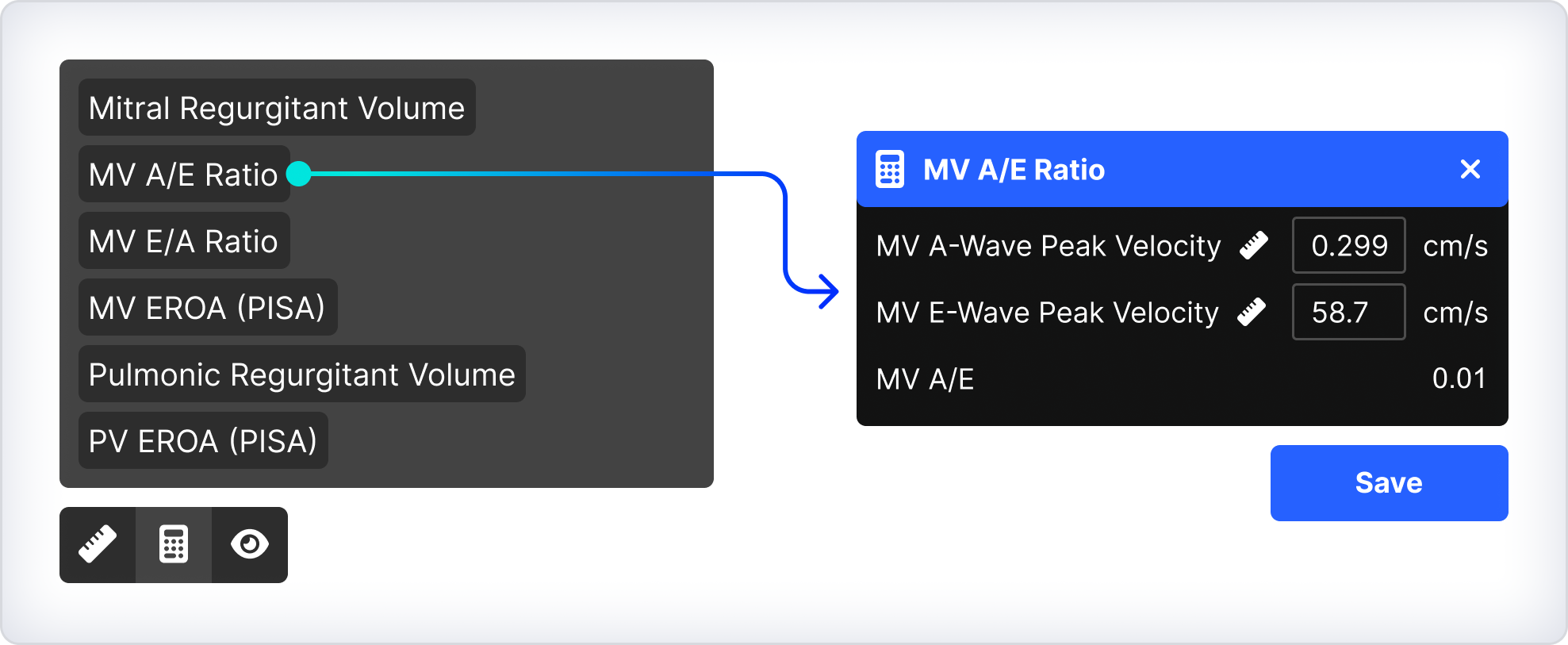
Step 2: Apply the Calculation
- Select the required custom calculation.
- Select the measurements to be used in the calculation, or enter manual values where required.
- Capture any missing measurements using the Ruler tool.
- Ensure the correct clip and frame are selected when capturing missing measurements.
- Review the calculated result.
- Click Save.
The calculated value is saved alongside the other study measurements.
 MFR
MFR