

Getting Started
PIN, Signature, and Logo
Configure your report sign-off PIN, signature, and logo for finalized reports.
PIN, Signature, and Logo
HeartLab uses PIN verification and digital signatures to support secure report finalisation and clinical accountability.
When finalising a report:
- Your PIN is used to verify your identity
- Your configured signature and/or logo are applied to the final report
These settings help ensure report traceability, sign-off integrity, and clear clinician attribution.
Access Your Account Settings
- Select your profile name in the top-right corner.
- Navigate to Settings.
- Open the My Account section.
Available settings may vary depending on your assigned user roles and permissions.
Configure Your PIN
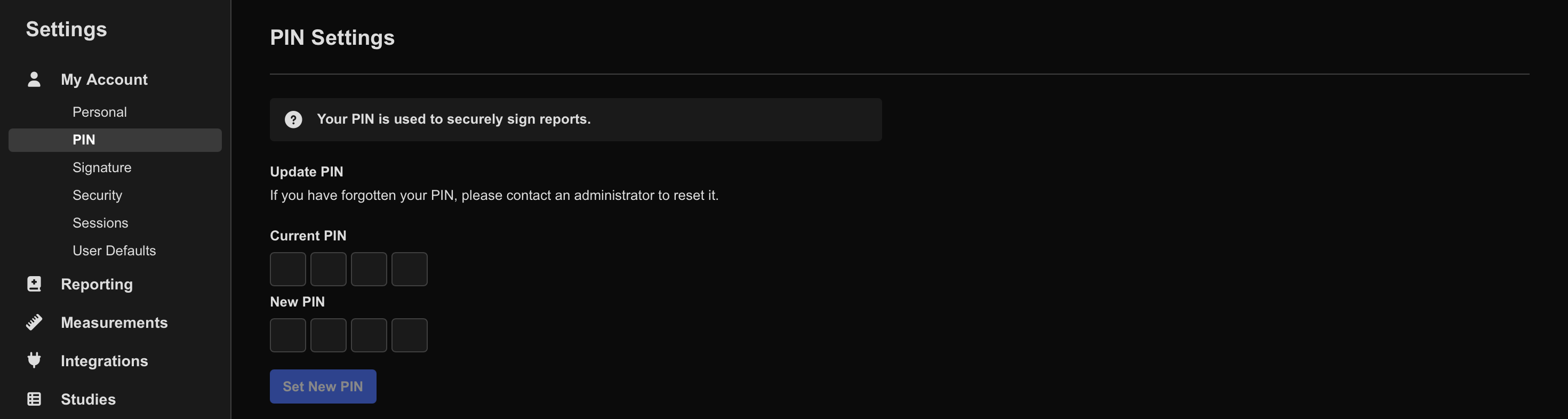
- Navigate to My Account > PIN.
- Enter a new four-character PIN.
- Confirm the PIN.
- Click Set New PIN.
To change an existing PIN:
- Enter your current PIN.
- Enter the new PIN.
- Click Set New PIN.
Your PIN is used to approve and finalise reports. Do not share your PIN with other users.
Configure Your Signature
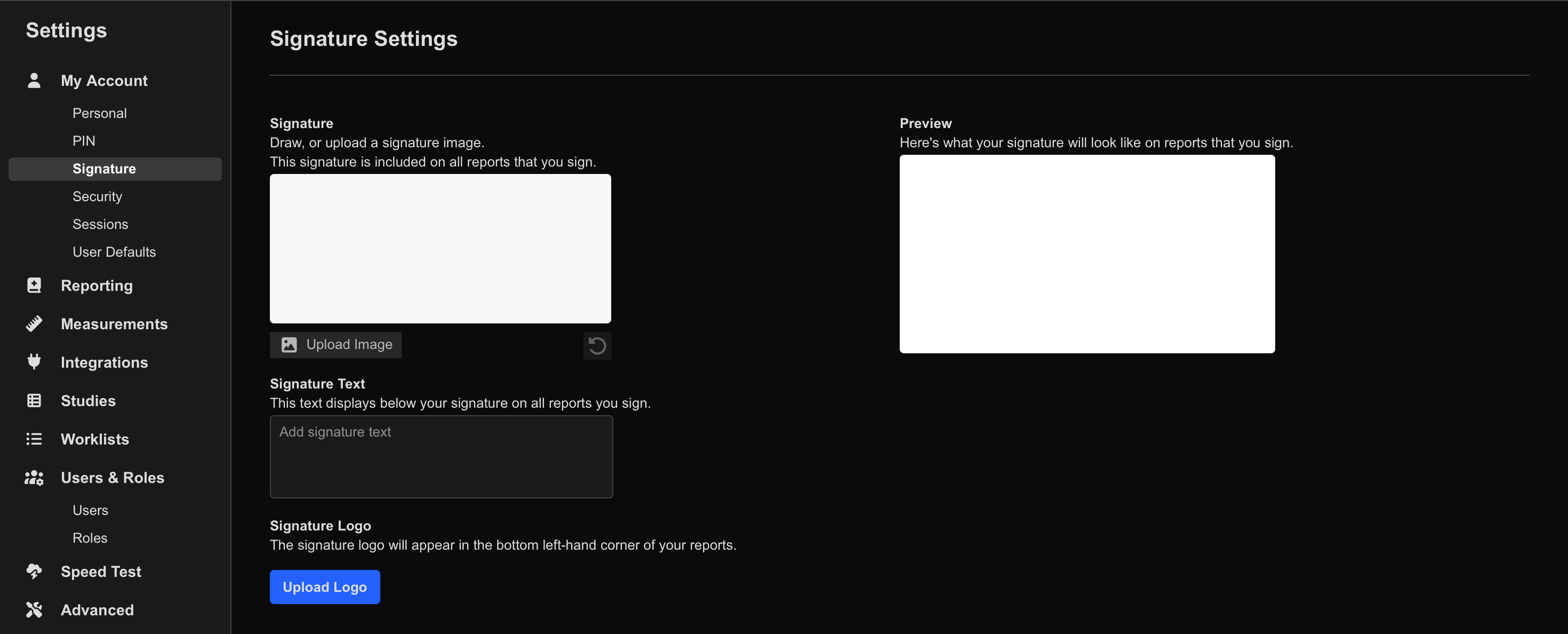
- Navigate to My Account > Signature.
- Configure your signature using one or more of the following methods:
- Draw a freehand signature
- Enter signature text
- Upload an image of your signature
- Save the configuration if prompted.
HeartLab displays a live preview of the configured signature.
Your signature appears at the bottom of reports you finalise.
Use a clear, high-resolution signature image to improve readability on exported and printed reports.
Upload a Signature Logo
- Navigate to My Account > Signature.
- Select Upload Logo.
- Choose the desired logo image from your device.
HeartLab previews the uploaded logo automatically.
- Logos must be PNG images
- Maximum file size: 2 MB
To replace an existing logo:
- Upload a new logo
To remove a logo:
- Select Remove Logo
Additional Information
Signature and PIN configuration may also be presented during the user onboarding process.
 MFR
MFR