Merge Studies
Merge Studies
HeartLab allows two studies to be merged by copying the content from one study into another. This is useful when a study has been uploaded in multiple separate parts unintentionally. All DICOMs, images, PDFs, attached files, and reports are copied when merging studies.
Merging studies helps to keep patient records complete and organised, as well as to avoid duplicates in the study list.
Merge Two Studies
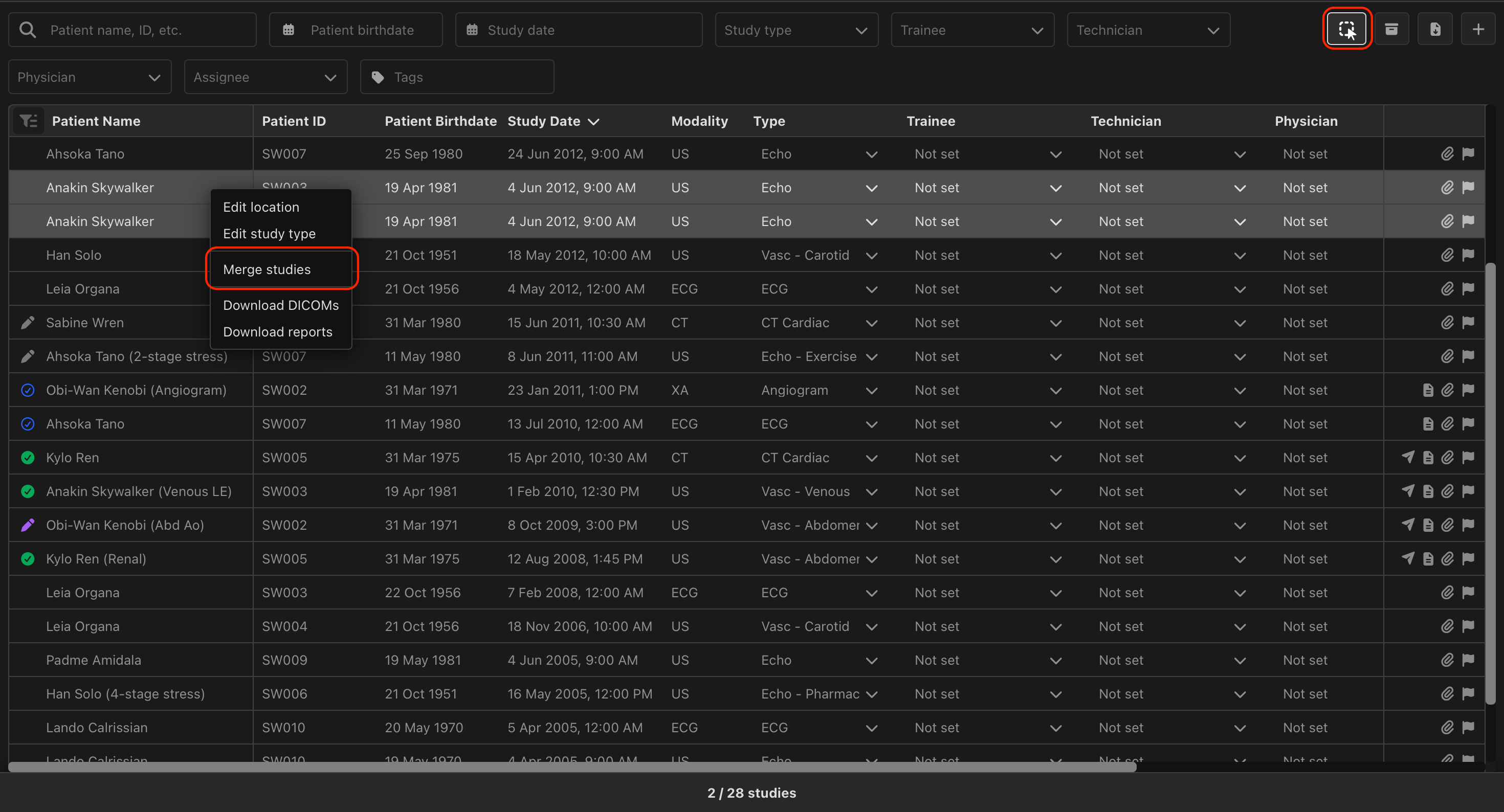
To merge studies:
- Click the Multi-Select tool icon on the Study List.
- Select exactly two studies.
- Right-click either selected study.
- Select Merge Studies.
The Merge Studies window opens, allowing you to review the source and target studies before completing the merge.
Review the Merge
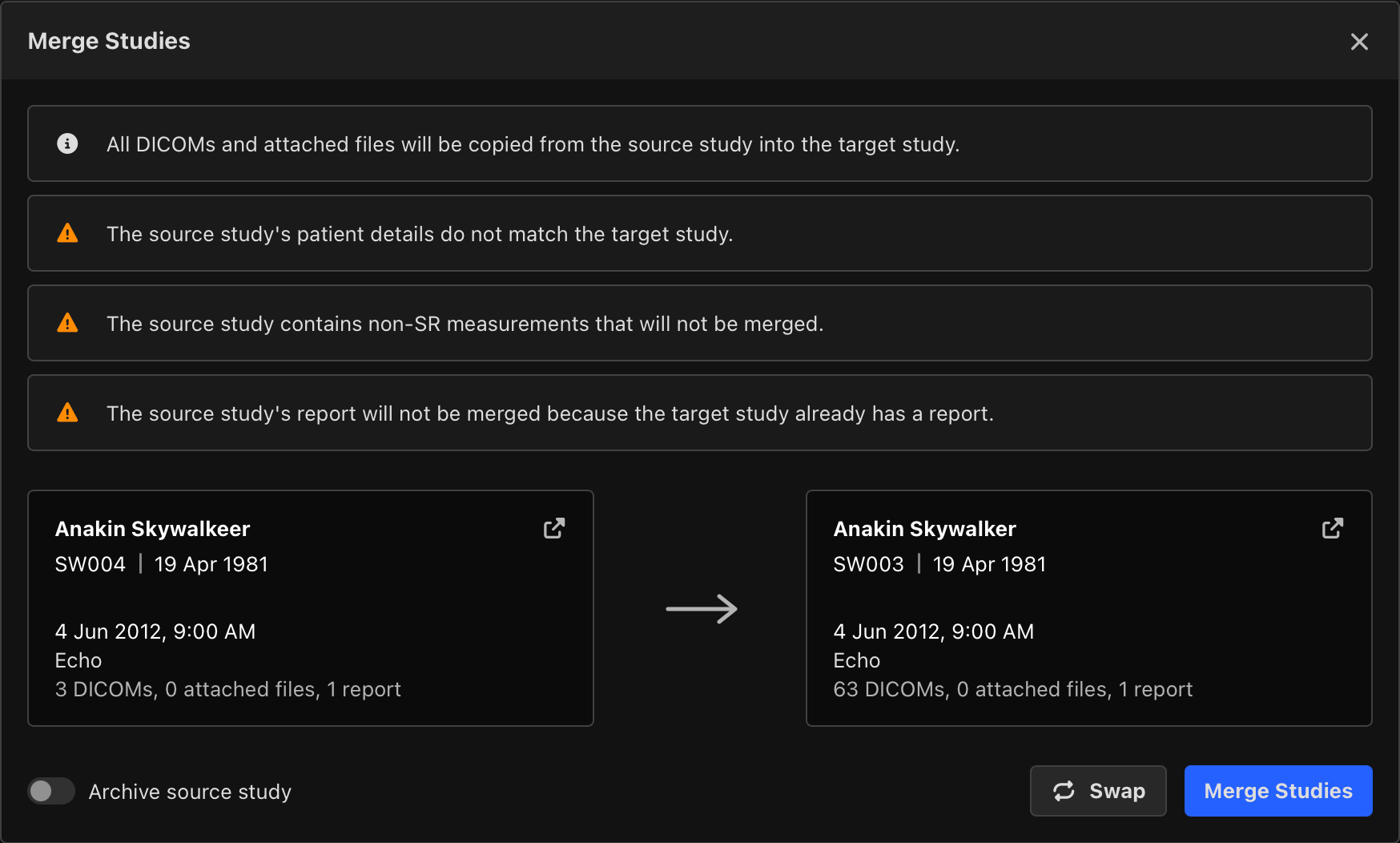
HeartLab displays warnings when potential issues are detected. These warnings include:
- Mismatched patient details on the two studies
- Source study contains manual measurements that won't be copied
- The source study's report can't be copied because the target study already has a report
These warnings are intended to help prevent accidental merges and should be reviewed before continuing.
To complete the merge:
- Review any warning labels.
- (Optional) Select Swap to reverse the source and target studies.
- (Optional) Enable Archive source study.
- Select Merge Studies.
The selected source study is merged into the target study. The source study remains visible in the Study List unless Archive source study is selected.
What Gets Merged
During the merge, HeartLab copies the following items from the source study to the target study:
- DICOMs, including all images and DICOM SRs
- Attached files, including PDFs and XMLs
- Reports (only if the target study has no report)
The following items are not copied:
- Manual (non-SR) measurements
Duplicates are automatically detected and not copied.
 MFR
MFR