

Study List Columns
Study List Columns
The Study List is organised into columns, with each column displaying key study information at a glance. Administrators can customise which columns and dropdown options appear to better support their organisation’s workflow.
Enable Study List Columns
To show or hide columns in the Study List:
- Navigate to Settings → Studies → Column.
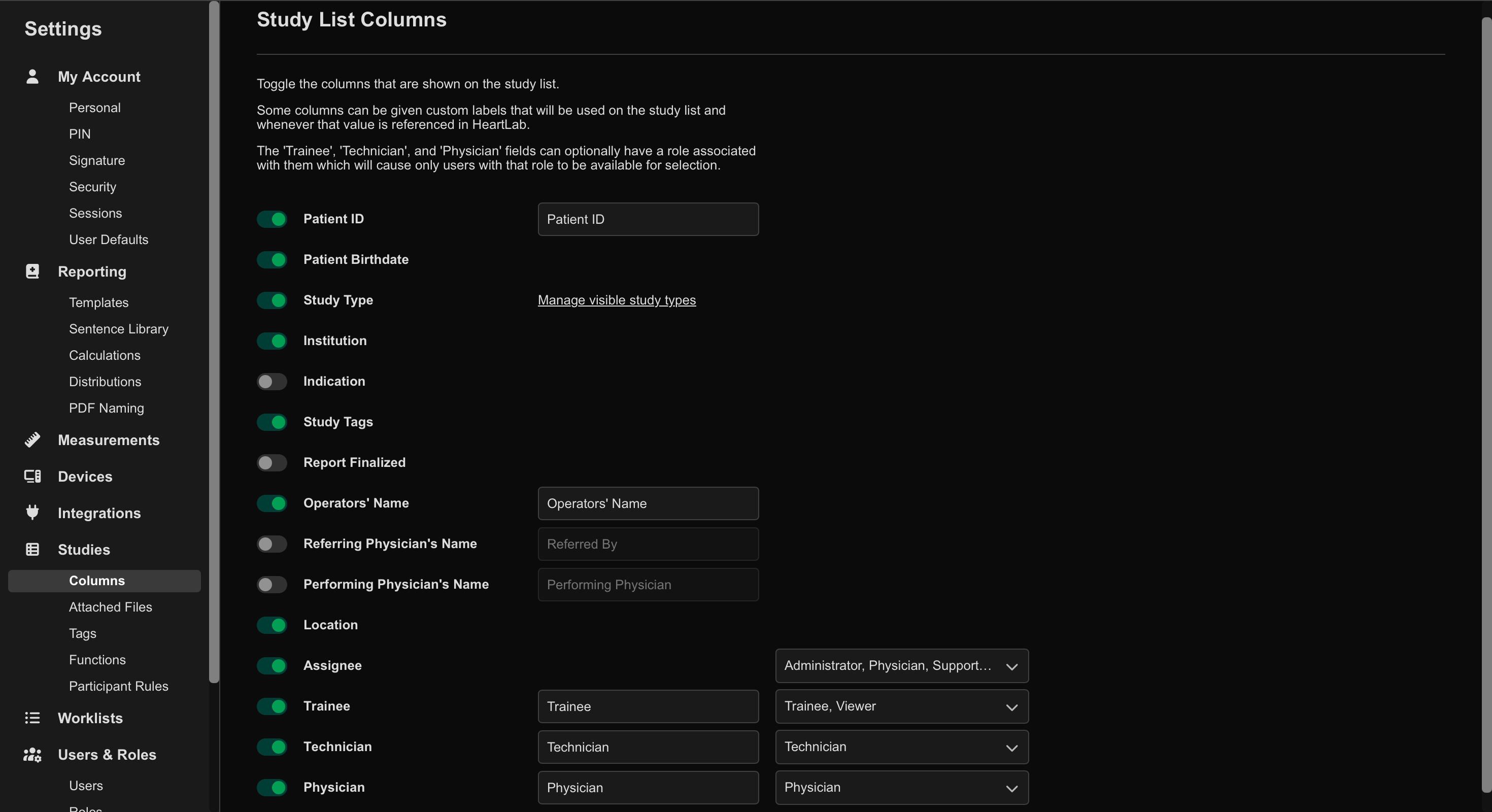
- Toggle the required columns on or off.
The following columns support customisation:
- Patient ID
- Operator Name
- Referring Physician Name
- Performing Physician Name
- Assignee
- Trainee
- Technician
- Physician
Administrators can:
- Rename these column labels or
- Restrict selectable users by role
For example, assigning the Viewer role to the Trainee column means only users with the Viewer role appear in the dropdown list.
View and Use Study Columns
Once enabled, columns appear in the Study List.
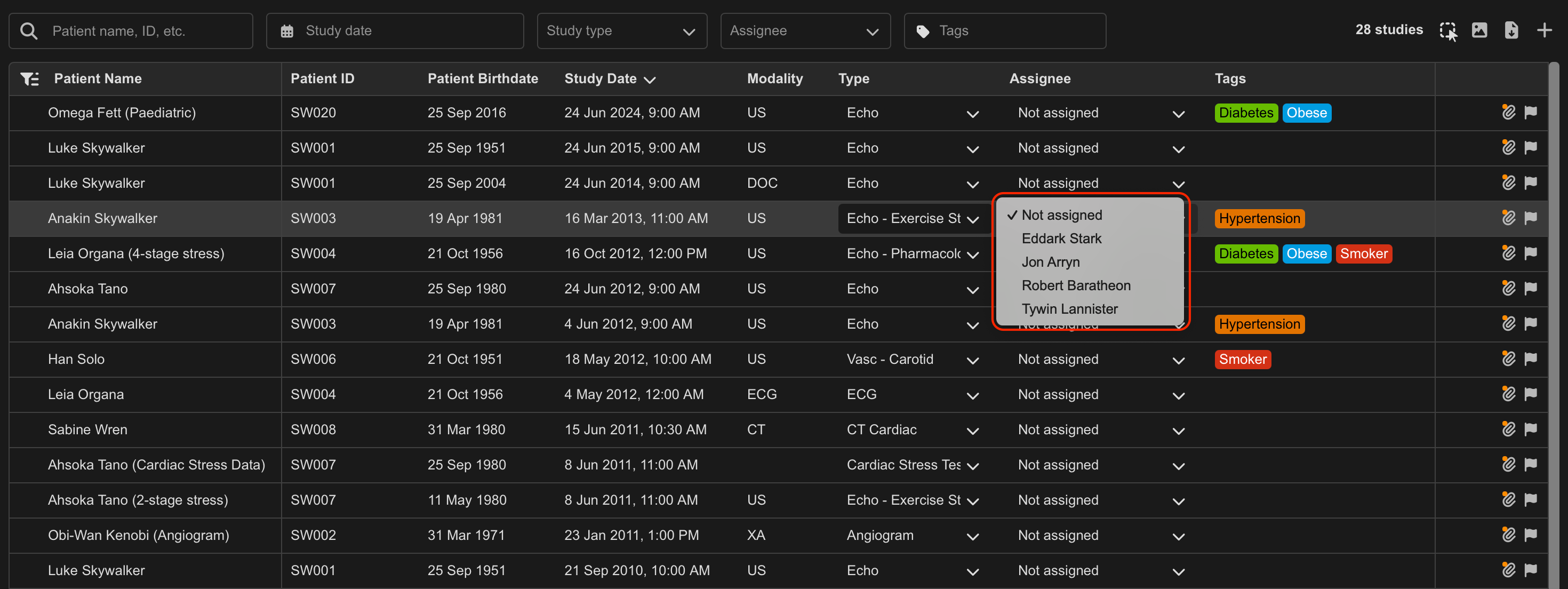
Where applicable, column values automatically populate using metadata from the uploaded DICOM files.
For the following columns, users can manually update values directly from the Study List:
- Study Type
- Trainee
- Technician
- Physician
Configuring Study List columns helps users:
- Quickly identify study classifications
- View assigned users and responsibilities
- Improve workflow visibility across teams
Configure the Study Type Dropdown
Administrators can customise which Study Types appear in the Study Type dropdown.
To configure visible Study Types:
- Navigate to Settings → Studies → Column.
- Select Manage Visible Study Types.
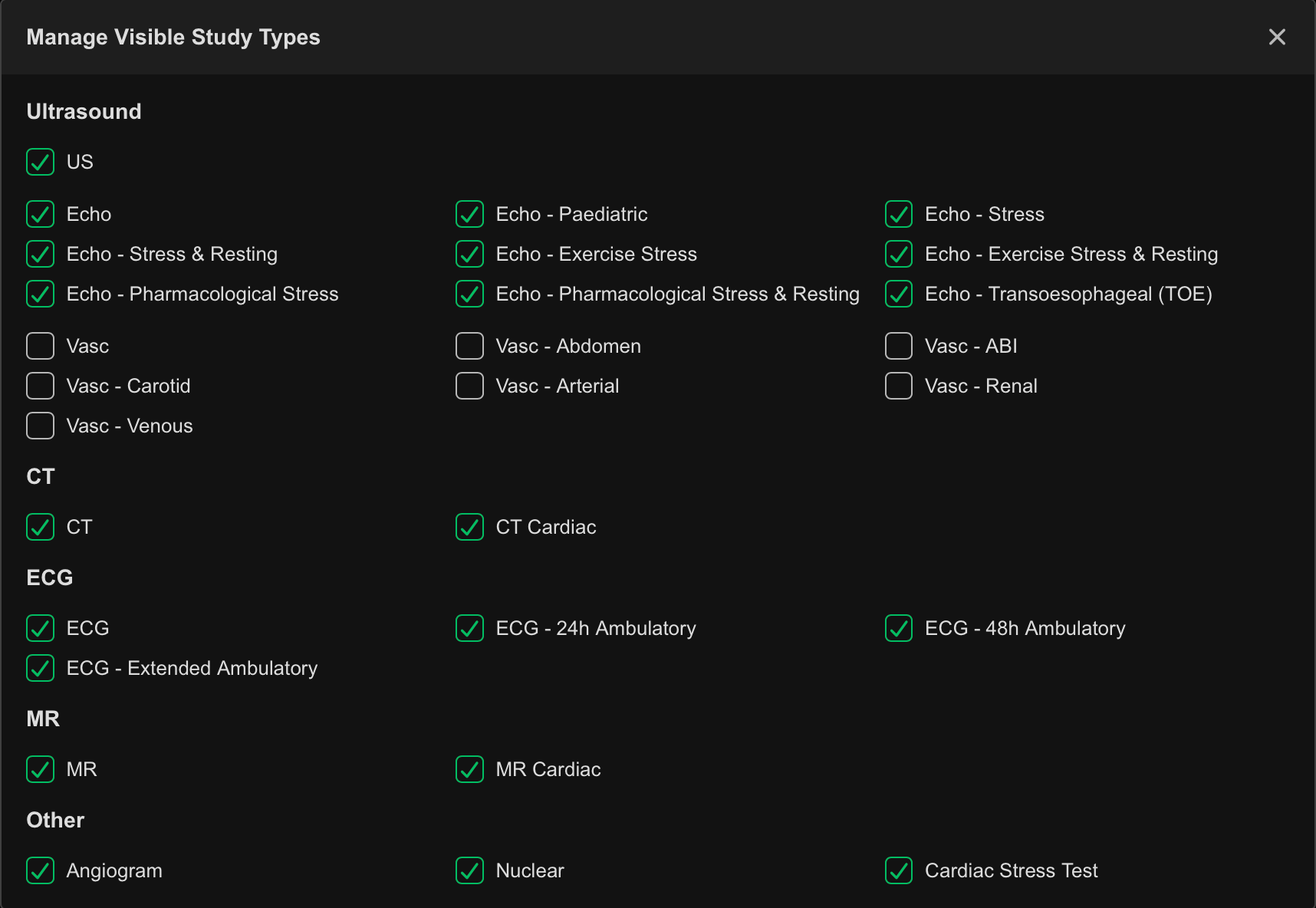
- Select or deselect the required Study Types.
- Close the window to save changes automatically.
Only selected Study Types appear in the dropdown list.
Configure Assignee Dropdown Roles
Administrators can configure which user roles appear in the following dropdown fields:
- Assignee
- Trainee
- Technician
- Physician
To configure dropdown roles:
- Navigate to Settings → Studies → Column.
- Select the dropdown arrow beside the target column.
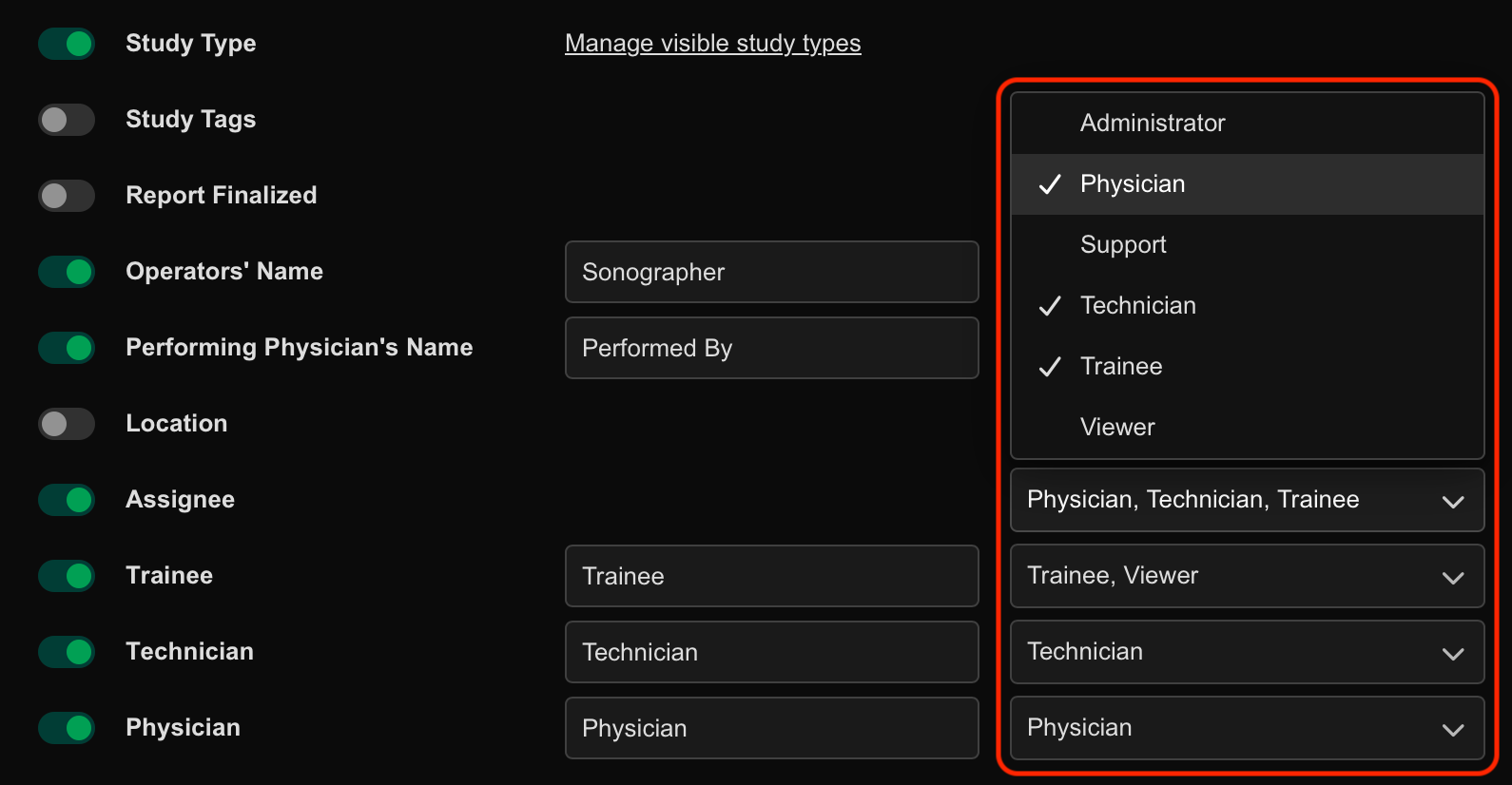
- Select or deselect the required roles.
- Close the window to save changes automatically.
Only users with at least one selected role appear in the corresponding dropdown list.
 MFR
MFR