

Report Templates
Presets
Create and apply report presets to pre-fill common findings and speed repetitive reporting.
Presets
Report Presets are pre-configured sets of report responses that can be quickly applied during reporting.
Presets help:
- Reduce repetitive text entry
- Accelerate report completion
- Standardise reporting workflows
- Improve reporting consistency
- Reduce variation across similar studies
Presets are particularly useful for:
- Common normal studies
- Frequently repeated findings
- Standardised reporting patterns
- Site-specific reporting preferences
Always review report contents fully before finalising to ensure preset content is clinically appropriate and relevant to the current study.
Create and Manage Presets
To create or edit a preset:
- Navigate to Settings → Reporting → Templates.
- Select the desired report template.
- Select Edit Presets.
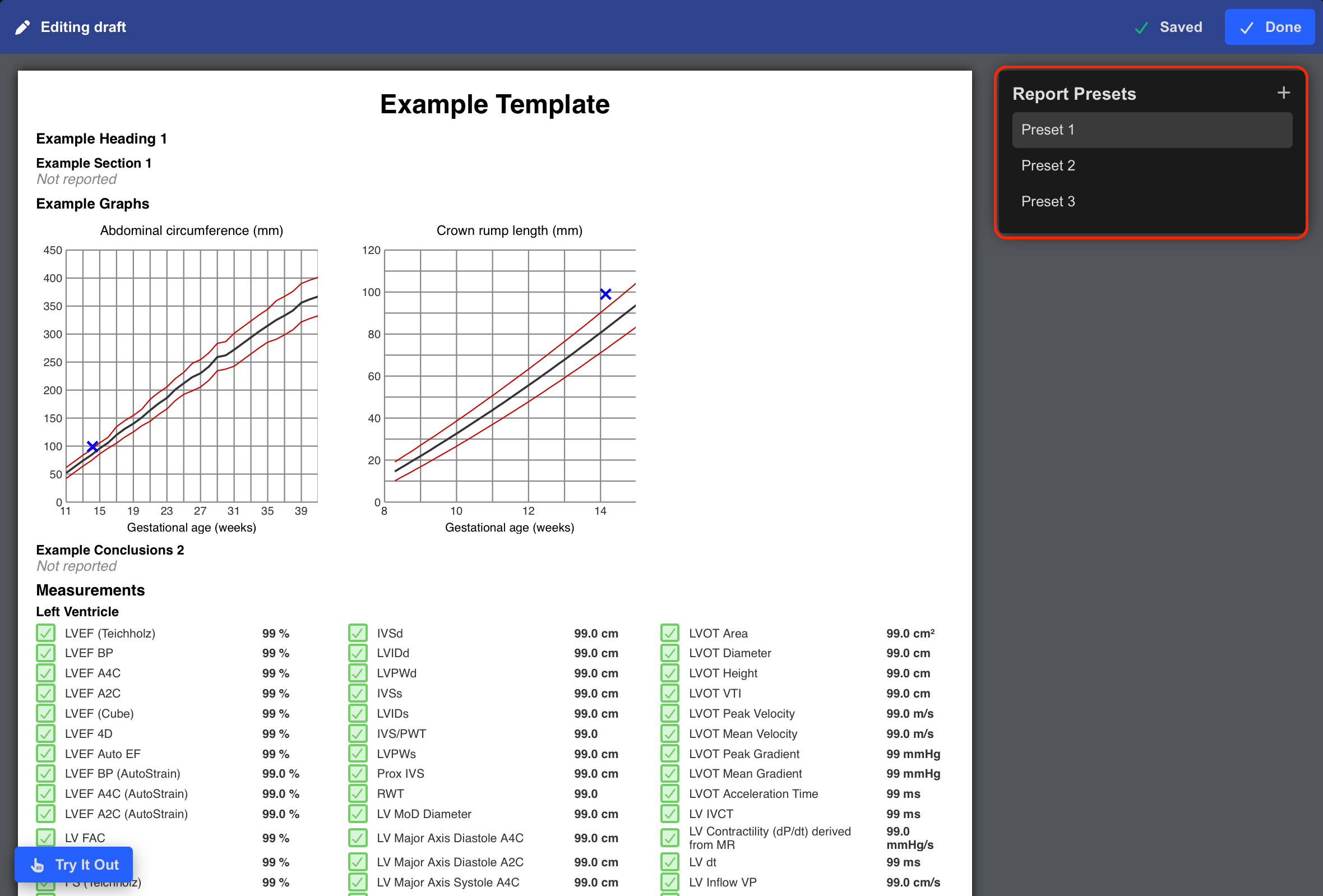
- Select the + icon to create a new preset.
- Enter a preset name.
- Select the preset and populate the desired default responses within:
- Dropdowns
- Sentence fields
- Tables
- Select Done to save the preset.
- Select Publish to publish the template and associated presets.
Preset visibility must be enabled for the preset to appear as a selectable option during reporting.
Preset changes do not become available to users until the template has been published.
Apply a Preset During Reporting
To apply a preset to a report:
- Open the target study.
- Open the Report pane.
- Select a report template containing configured presets.
- Select Apply Preset.
- Choose the desired preset from the dropdown menu.
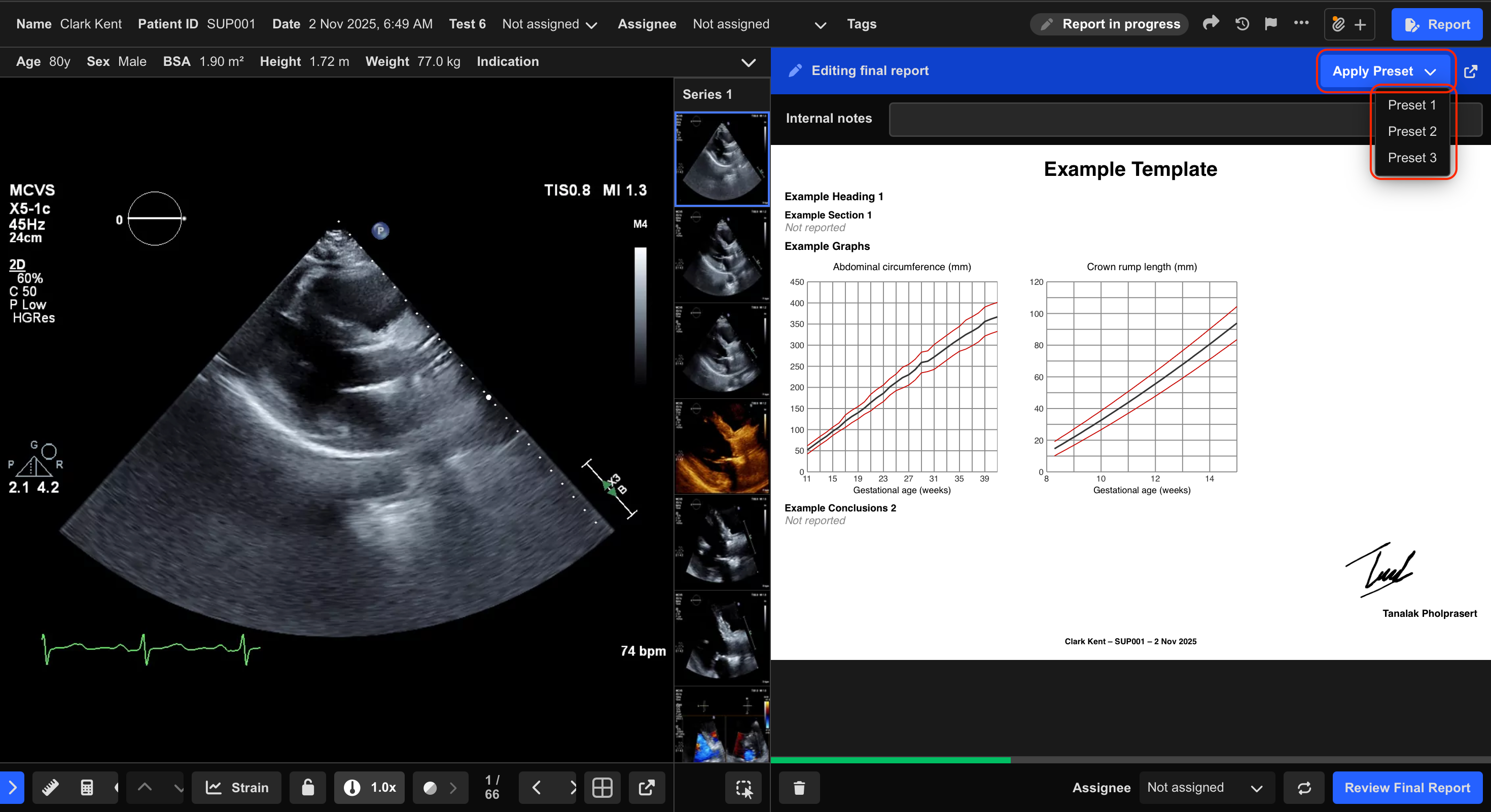
The configured preset responses populate the report automatically.
Review and Edit Preset Content
After applying a preset:
- Review all populated report content.
- Modify fields as clinically required.
- Continue the reporting workflow normally.
Users can:
- Edit dropdowns
- Change sentences
- Add custom comments
- Override preset content
before reviewing or finalising the report.
Presets and Automated Reporting
If Automated Reporting is enabled:
- Successfully automated fields are not overwritten by presets.
Users can still manually modify report content if needed.
Use presets together with Automated Reporting to minimise repetitive reporting tasks while preserving clinical flexibility.
Additional Notes
Create separate presets for common study patterns or reporting styles to improve workflow efficiency.
Use descriptive preset names so clinicians can quickly identify the correct option during reporting.
 MFR
MFR