

Troubleshooting
Reset User Access
Reset a user's password, PIN, or onboarding state from Administration.
Reset User Access
Administrators can reset user access settings when users:
- Cannot sign in
- Have forgotten their password
- Have forgotten their report-signing PIN
- Need their onboarding or account setup restarted
Reset a User’s Access Settings
To reset user access settings:
- Navigate to Settings → Users & Roles → Users.
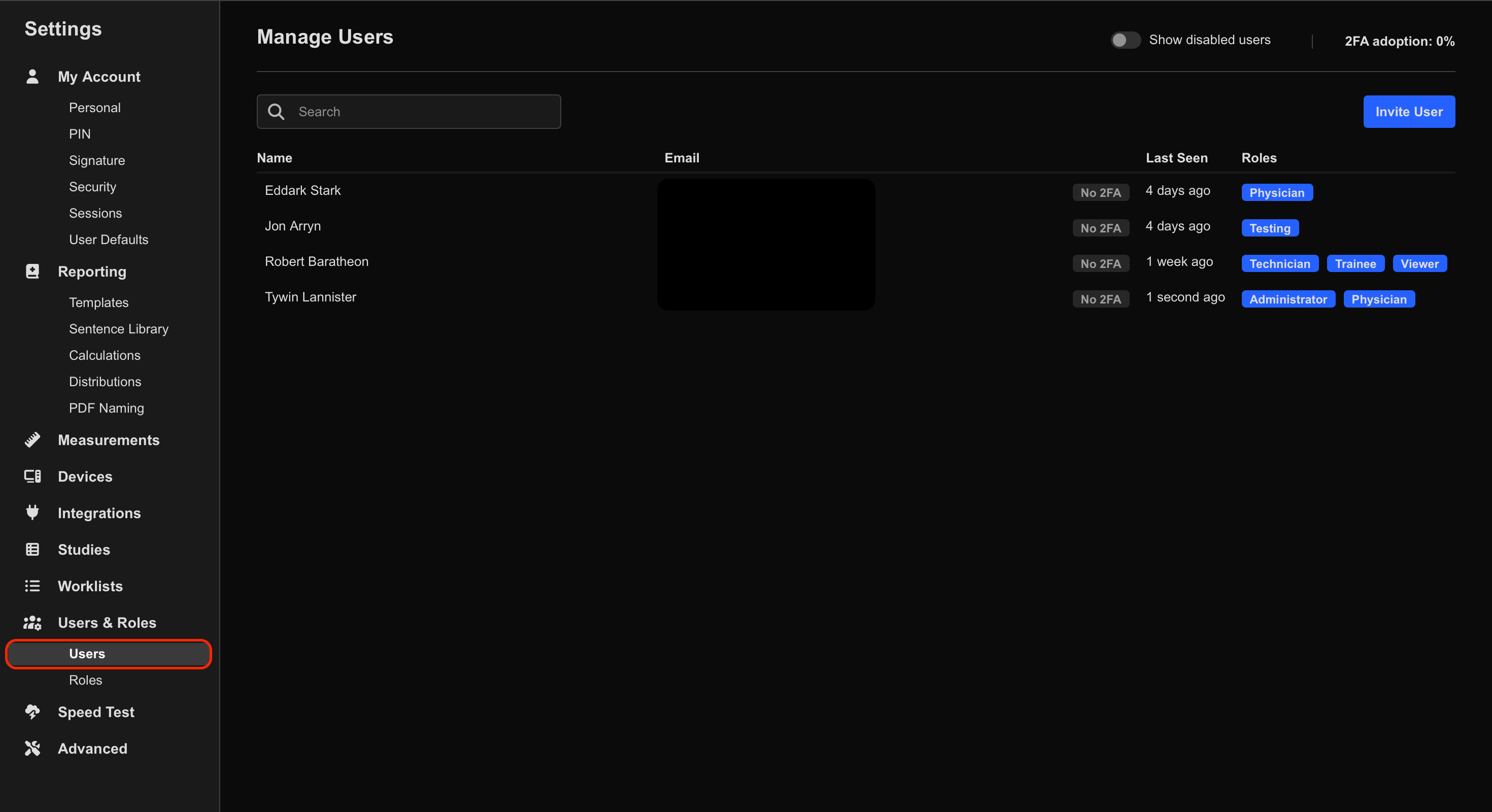
- Select the target user.
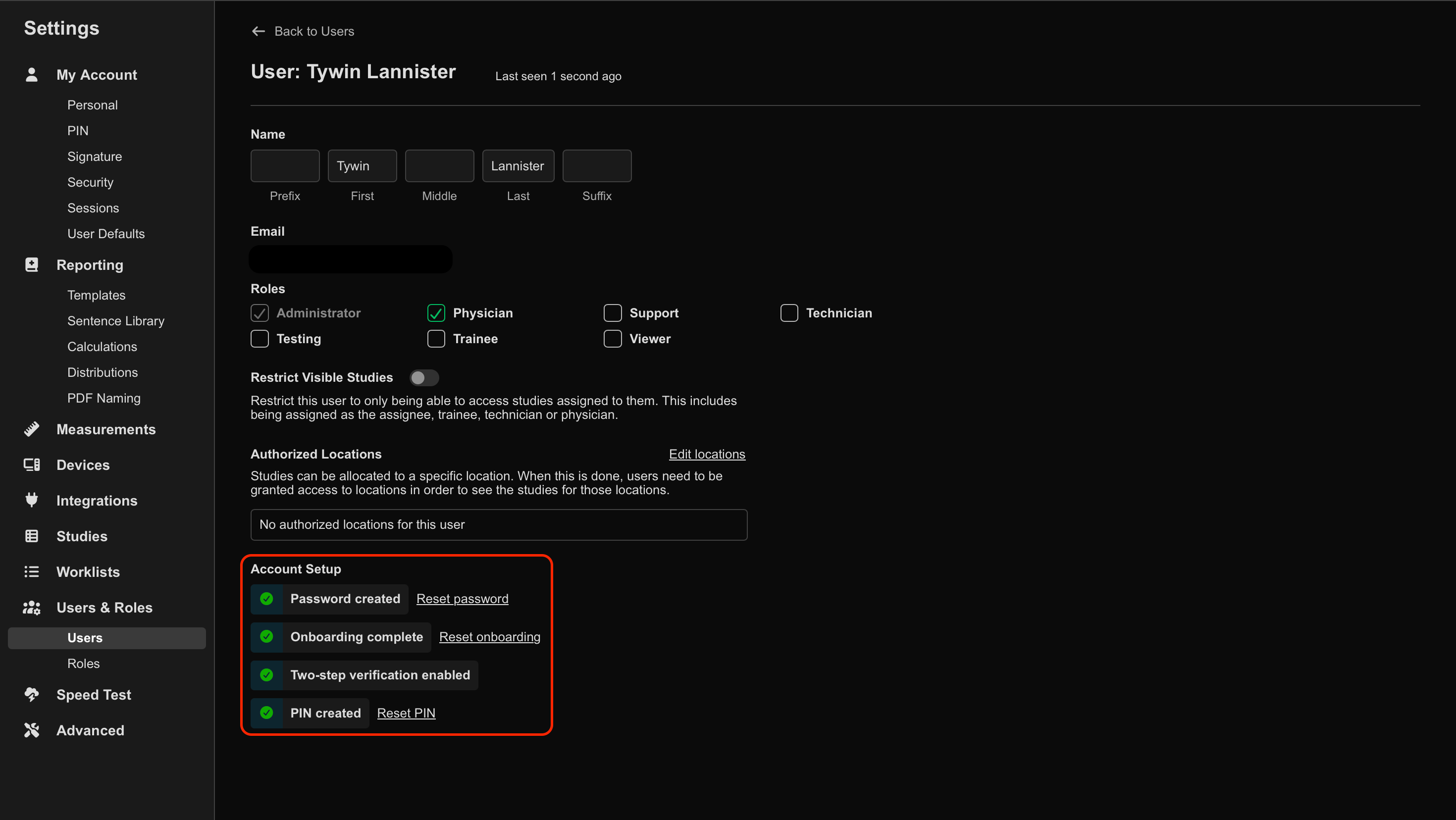
- Under Account Setup, select the required action:
- Reset password
- Sends the user a password reset email
- Reset onboarding
- Restarts the user onboarding process, including:
- Password setup
- PIN setup
- Report signature setup
- Restarts the user onboarding process, including:
- Reset PIN
- Clears the user’s report-signing PIN
- Allows the user to create a new PIN
After Resetting Access
After resetting access settings:
- Ask the user to check their email inbox.
- Follow any setup or verification prompts.
- Confirm the user can successfully sign in again.
Additional Notes
Reset onboarding is useful when users need to repeat their initial account setup process from the beginning.
Resetting access settings may temporarily prevent the user from signing in until setup has been completed again.
Available reset options may vary depending on organisational security settings and enabled authentication methods.
 MFR
MFR