

Measurements
Doppler Slope
Measure spectral Doppler slope values and save labelled slope measurements.
Doppler Slope Measurements
HeartLab allows users to perform slope measurements directly on spectral Doppler waveforms within the study viewer. Slope measurements can be used to assess waveform gradients and derive slope-related Doppler parameters.
This guide explains how to create, refine, and save Doppler slope measurements.
Steps
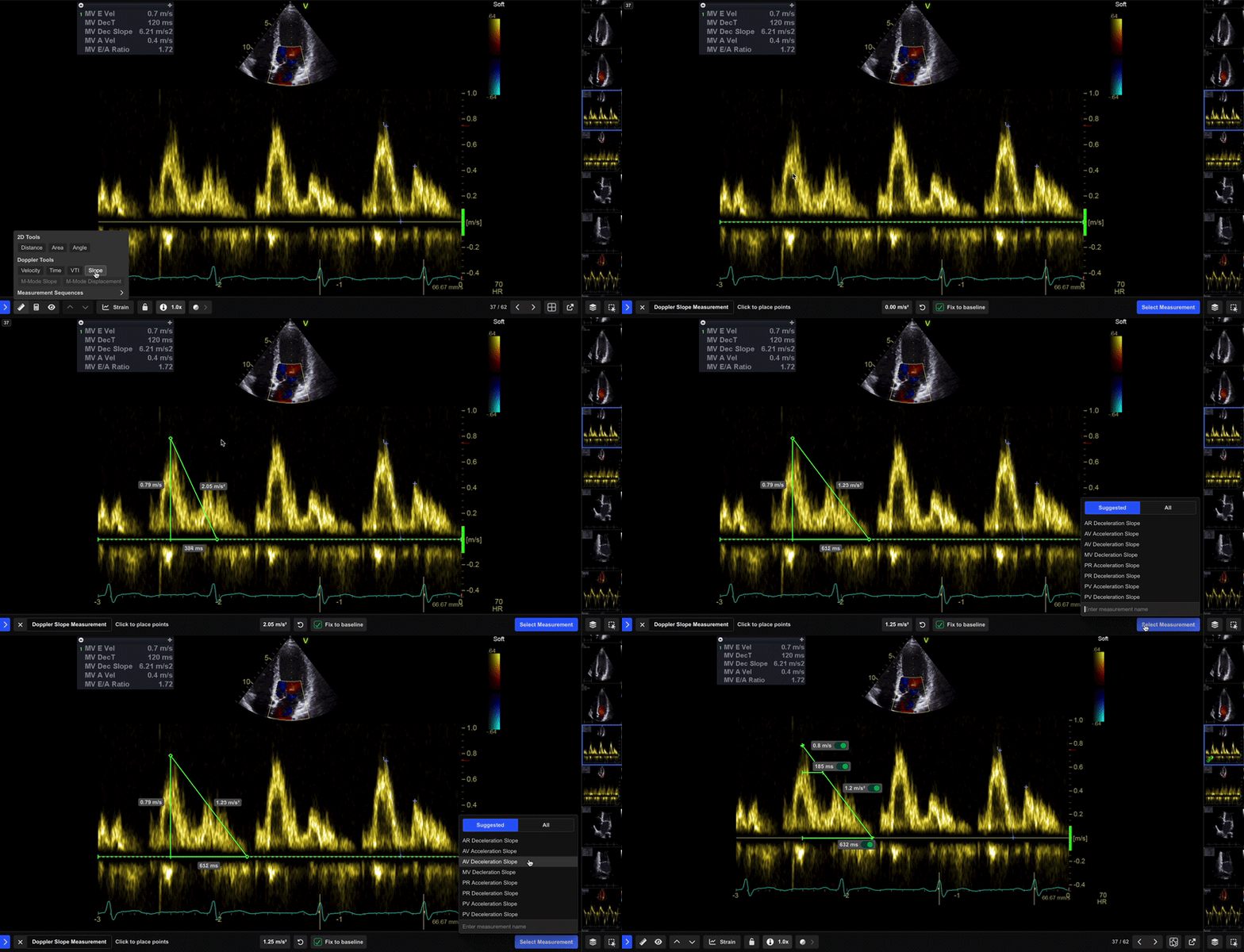
Step 1: Select the Slope Tool
- Select Slope from the Measurement Toolbar.
Doppler measurement tools are only available when viewing a recognised Doppler image.
Step 2: Define the Slope
- Select the starting point on the Doppler waveform.
- Drag the cursor or touch input to define the desired slope.
- Release to complete the measurement.
HeartLab displays a live preview of the slope measurement in the lower pane while tracing.
Step 3: Review the Measurement
Once the slope is complete, HeartLab displays the calculated value.
You can then choose to:
- Adjust control points
- Retake the measurement
- Save the measurement
Step 4: Save the Measurement
- Select Select Measurement or press Enter.
- In the pop-up window:
- Search, scroll, or create a measurement label
- Select the appropriate measurement type
- Optionally include related measurements
- Click Save or press Enter.
The measurement is saved to the study and the annotation remains visible on the image.
Confirm baseline placement and waveform clarity before saving the measurement. Re-measure if the spectral envelope boundaries are unclear or poorly defined.
 MFR
MFR