

Connectivity
Kosmos
Connect a Kosmos device to HeartLab via IPSec VPN and DICOM profile configuration.
Kosmos
Kosmos devices can be connected to HeartLab using a native VPN configuration and DICOM PACS profile.
This guide explains how to:
- Configure the VPN connection
- Create the DICOM Identity in HeartLab
- Configure the PACS profile
- Send studies to HeartLab
Before You Begin
You will require:
- Administrative access to the Kosmos device
- HeartLab DICOM endpoint information
- VPN credentials supplied by HeartLab
- Internet connectivity on the Kosmos device
Configure VPN
- Connect the Kosmos device to your Wi-Fi network.
- Navigate to Settings > Admin Settings > VPN
- Select the + button in the toolbar to create a new VPN configuration.
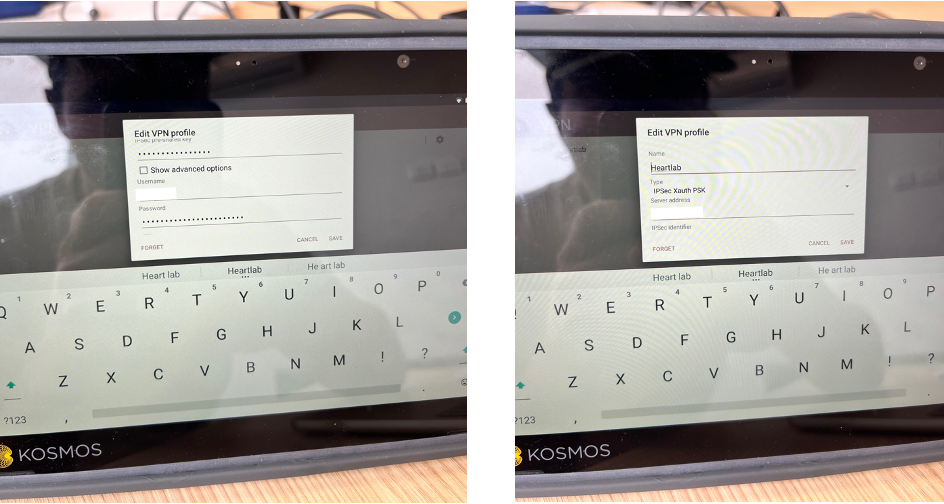
- Configure the following:
| Setting | Value |
|---|---|
| Name | HeartLab (optional) |
| Type | IPSec Xauth PSK |
| Server Address | Provided by HeartLab |
| Pre-shared Key (PSK) | Provided by HeartLab |
| Username | Provided by HeartLab |
| Password | Provided by HeartLab |
- Select Save.
- Connect to the VPN by selecting the newly created profile and clicking Connect.
Confirm the VPN status displays as connected before attempting DICOM transmission.
Create Device in HeartLab
If you do not see these settings, your role may not include Integrations permissions.
Contact your HeartLab administrator if required.
- Sign in to HeartLab.
- Navigate to Settings > Devices > DICOM
- Select Create DICOM Identity
- Enter the following:
- Name: Friendly device name (for example,
South Coast Site - Room 1) | - AE Title: Unique device AE Title
- Name: Friendly device name (for example,
The AE Title entered here must exactly match the Station AE Title configured on the Kosmos device.
Create the PACS Profile
- On the Kosmos device, navigate to Settings > Admin Settings
- Select DICOM > PACS > + ADD PROFILE
- Configure the following:
| Setting | Value |
|---|---|
| Station AE Title | AE Title created in HeartLab |
| Server IP Address | Provided by HeartLab |
| Server AE Title | HeartLab Server AE Title |
| Server Port | 11112 |
- Select Verify to test the connection.
- A green tick indicates successful verification.
Ping validation may fail even when the DICOM connection is functioning correctly.
- Configure report settings:
- Toggle OFF:
- Attach the report
- Toggle ON:
- Attach the DICOM SR report
- Toggle OFF:
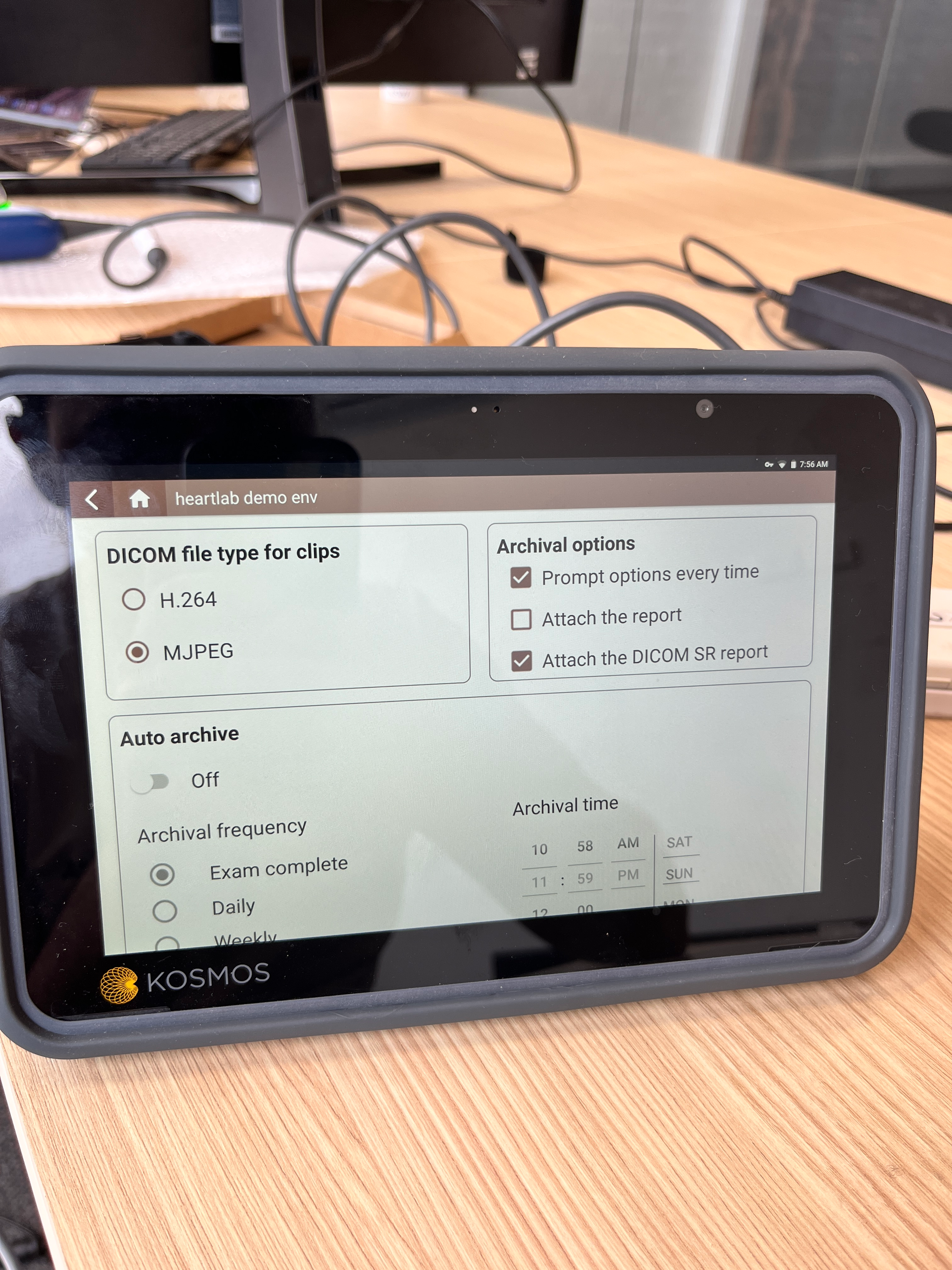
Sending Studies
Before sending studies:
- Confirm the VPN connection is active
- Confirm the PACS profile is active
To send studies:
- Complete the study on the Kosmos device.
- Select PACS from the right-hand menu.
- When prompted, select OK to complete and archive the study.
- The study will begin transferring to HeartLab.
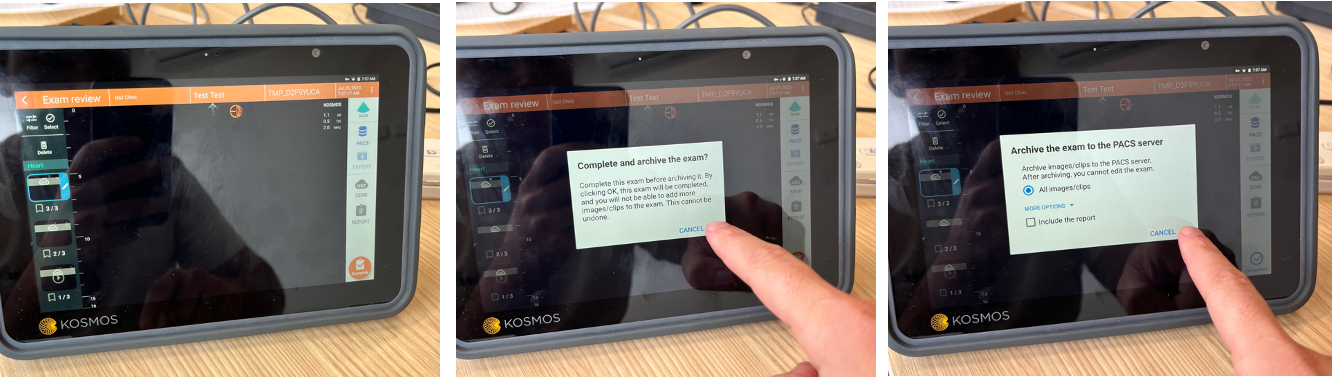
Studies may also be sent directly from the study list.
Troubleshooting
Common causes of failed transmission include:
- VPN not connected
- Incorrect AE Titles
- Incorrect Server IP or AE Title
- Internet connectivity issues
- Stalled send queue
If studies do not send:
- Confirm internet connectivity
- Confirm the VPN remains connected
- Verify the PACS profile
- Confirm the send queue is empty
- Re-run PACS profile verification
 MFR
MFR